
Storage places
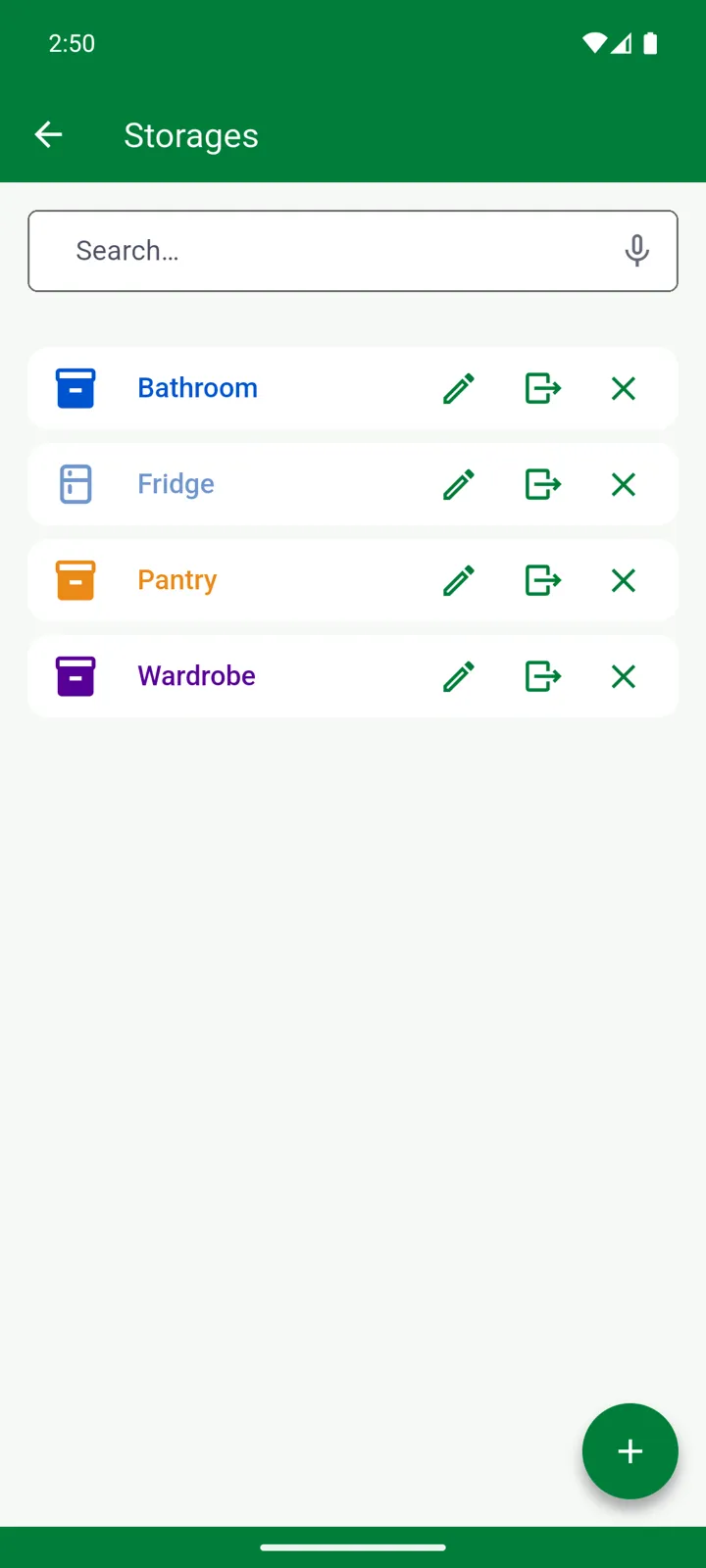
Manage → Storages. Storage places belong to the list you’re in.
Storage places say where something is; categories say what it is. A storage place can be anything you’d point at — the fridge, a shelf in the garage, the blue box under the bed — and places can sit inside other places, so Freezer can live in Kitchen. The Inventory tab can be browsed place by place, and moving items from one place to another is a couple of taps.
Creating a storage place
Section titled “Creating a storage place”-
Open Manage → Storages and tap +.
-
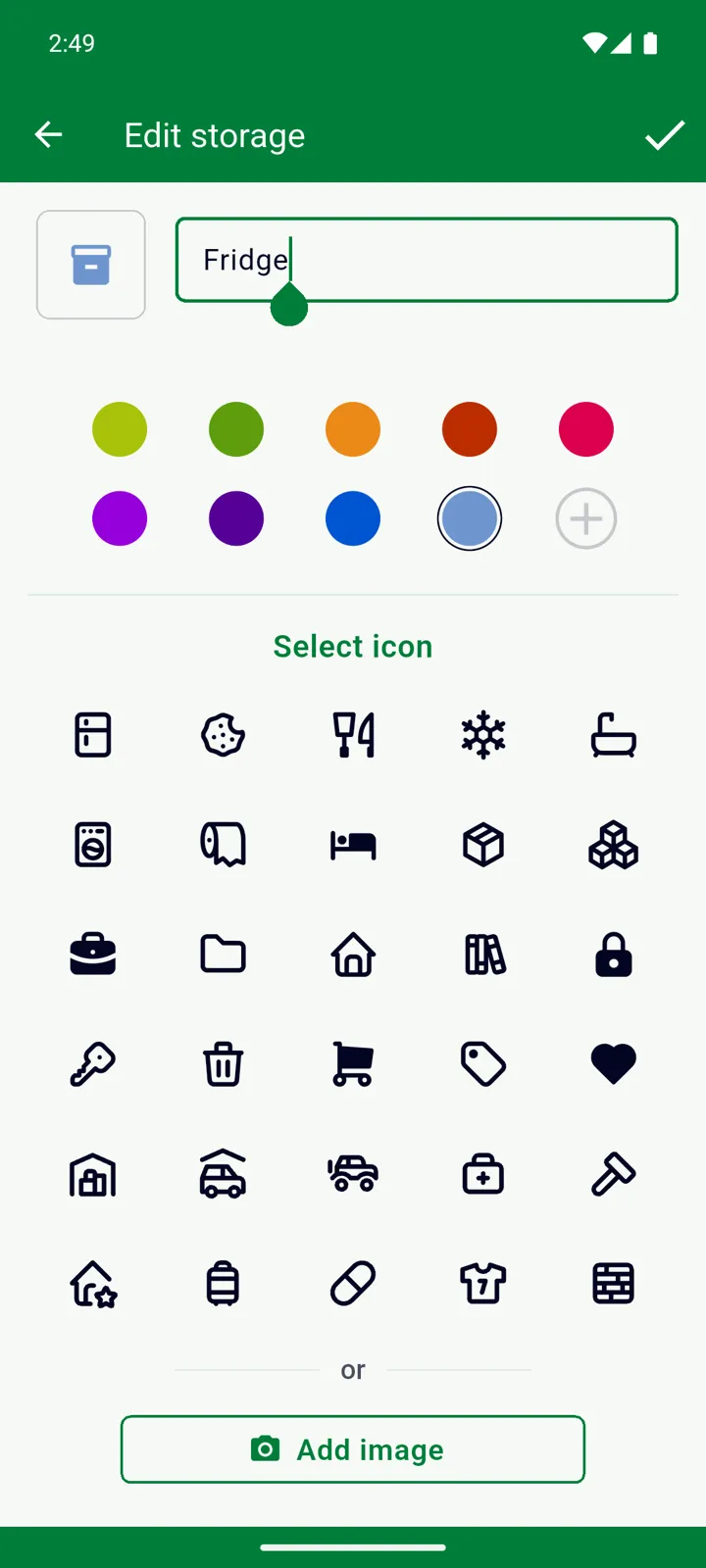
Type the name in Storage and pick a colour.
-
Optionally give it a look: choose one of the icons under Select icon, or tap Add image to use a photo — one or the other. Both are Premium features.
-
Tap ✓.
For a place inside another, open the parent first, then tap +. There’s no limit to how deep you go. You can also create places while adding an item: in the Storages picker, tap + for a new top-level place, or select a place and tap the new-folder icon.
The pencil edits a place; the move icon opens Move … to, where you pick a new parent — or No Storage to make it top-level. A photo shows as a small thumbnail next to the place; tap it to see it full size.
Deleting a storage place
Section titled “Deleting a storage place”Tap ✕. If the place is empty, that’s it. If it holds items or other places, InvenDo asks: This storage place contains items or other places. Do you wish to delete them all?
Browsing by place
Section titled “Browsing by place”Tap the storage toolbar button on the Inventory tab. Your top-level places appear as tiles with counters — green for items that are fine, orange for expiring within the next week, red for expired — followed by any items that have no place. Tap a tile to open it: you’ll see the places inside it and its items, with a breadcrumb above; the house icon takes you back to the top. Adding an item while you’re inside a place puts it there.
Moving items
Section titled “Moving items”-
Tap the item and choose Move.
-
Pick the destination. For a single item you can also set how much to move — move 2 of 5 and the other 3 stay behind.
-
Tap ✓. InvenDo remembers the destination and suggests it next time.
To move several items at once, tap the Select items icon, tick them, and choose Move. When a moved item meets the same product with the same dates in the destination, the two become one entry.
The same product in two places is two entries — one for the milk in the kitchen fridge, one for the garage fridge. Its minimum quantity is compared against the total of both.
Good to know
Section titled “Good to know”- Storage places are per list. See Multiple lists.
- Icons and photos are Premium — also available to you inside a list someone with Premium shared with you. See Free vs Premium. Settings → Images → Disable Images hides the photos and shows the icon instead. See Settings overview.
- Don’t use storage places at all? Untick Storages under Features and Fields and the field and the grouping disappear from the list.
Still need help? Contact us