
Features and Fields
Manage → Features and Fields. This applies only to the list you’re in, and only the list’s owner sees it.
Not every list needs everything. A wardrobe inventory has no expiry dates; a tool shed has no prices. Untick a feature here and its fields vanish from the item forms, the quick panel and the list rows, so what’s left is quicker to fill in. Nothing is deleted — tick the box again and it all comes back.
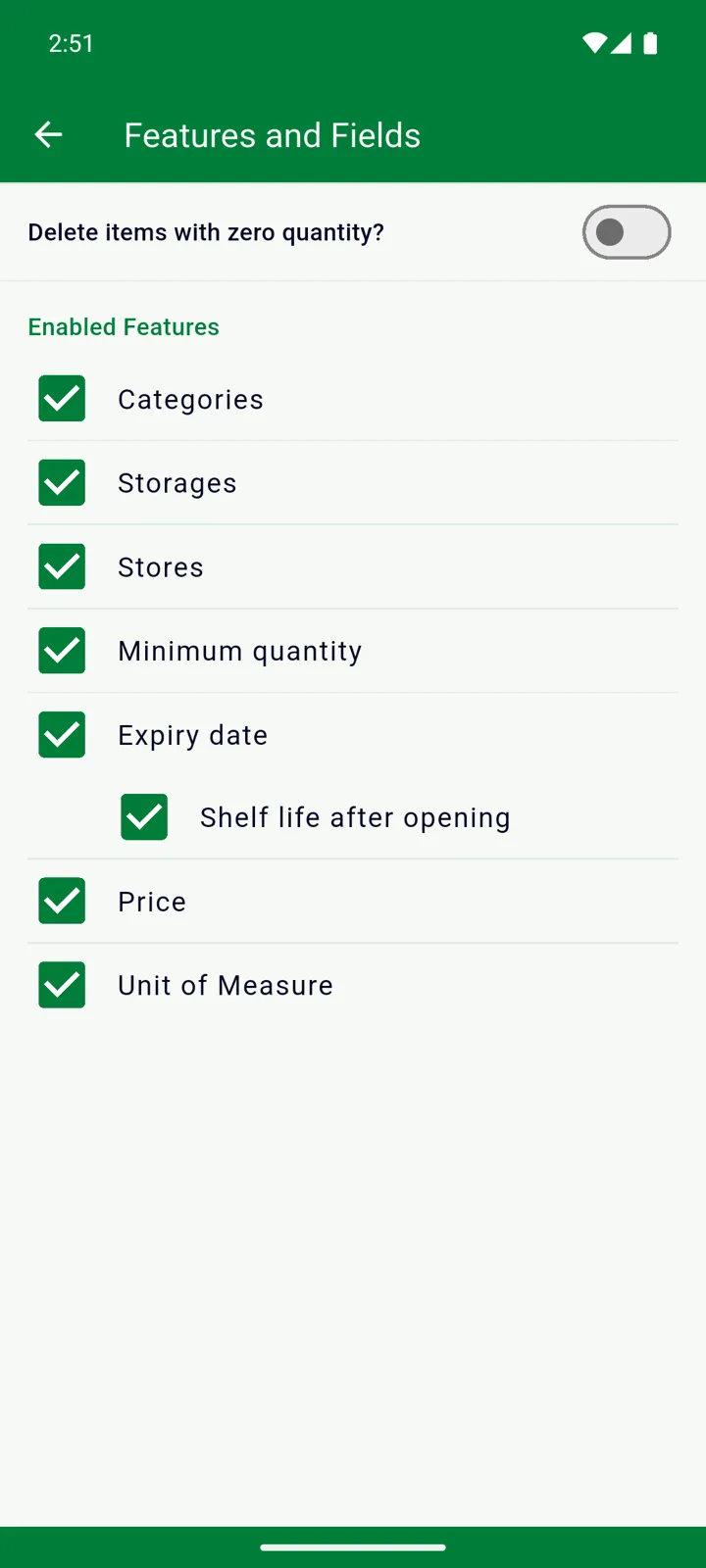
The switches
Section titled “The switches”Everything under Enabled Features is on when a list is created.
| Switch | What it controls |
|---|---|
| Categories | Grouping by category in both tabs, the category toolbar button and the category field on items. |
| Storages | Grouping by storage place in the Inventory, the storage toolbar button and the storage field on items. |
| Stores | Grouping by store on the Shopping List, the store toolbar button and the preferred-store field. |
| Minimum quantity | The minimum-quantity field, the red min badge and low-stock reminders for this list. |
| Expiry date | The expiry and manufacture date fields, the colour bar and days-left display, and sorting by expiry date. |
| Shelf life after opening | The Open one button, the Opened badge and the shelf-life field. It sits under Expiry date and switches off with it — an opened item only ever shortens an expiry date. |
| Price | The price field on items and the totals on the Shopping List. |
| Unit of Measure | The unit picker on items and the unit shown in the lists. |
The corresponding Manage entries stay where they are, so you can still tidy up categories or storage places while the feature is off.
Delete items with zero quantity?
Section titled “Delete items with zero quantity?”Off to begin with. Switch it on and InvenDo removes an item from the Inventory as soon as its quantity is set to 0 — from the quick panel, the swipe, or the Edit form — and clears out anything already at 0 when you flip the switch. Leave it off if you’d rather keep “out of stock” entries around as reminders to rebuy.
It only concerns the Inventory. Scan ” - ” and Move to Inventory remove entries that reach zero regardless, and a Shopping List row at 0 stays until you delete it.
New lists
Section titled “New lists”When you create a list, InvenDo shows this same set of switches straight away — Customize this list for your needs — before taking you to it. Whatever you choose there can be changed later here.
Good to know
Section titled “Good to know”- Each list has its own settings; they don’t affect your other lists. See Multiple lists.
- On a list shared with you, this entry is hidden — the owner decides which features the list uses.
- The screen is also read-only on an extra list you own without Premium; see Free vs Premium.
Still need help? Contact us