
Settings overview
Open the menu ☰ and tap Settings. Settings are about the app itself — how it looks and behaves for you. How a list is organised lives under Manage instead; see Manage overview.
Most settings follow your account: change the theme on your phone and your tablet follows. What stays on each device is noted below.
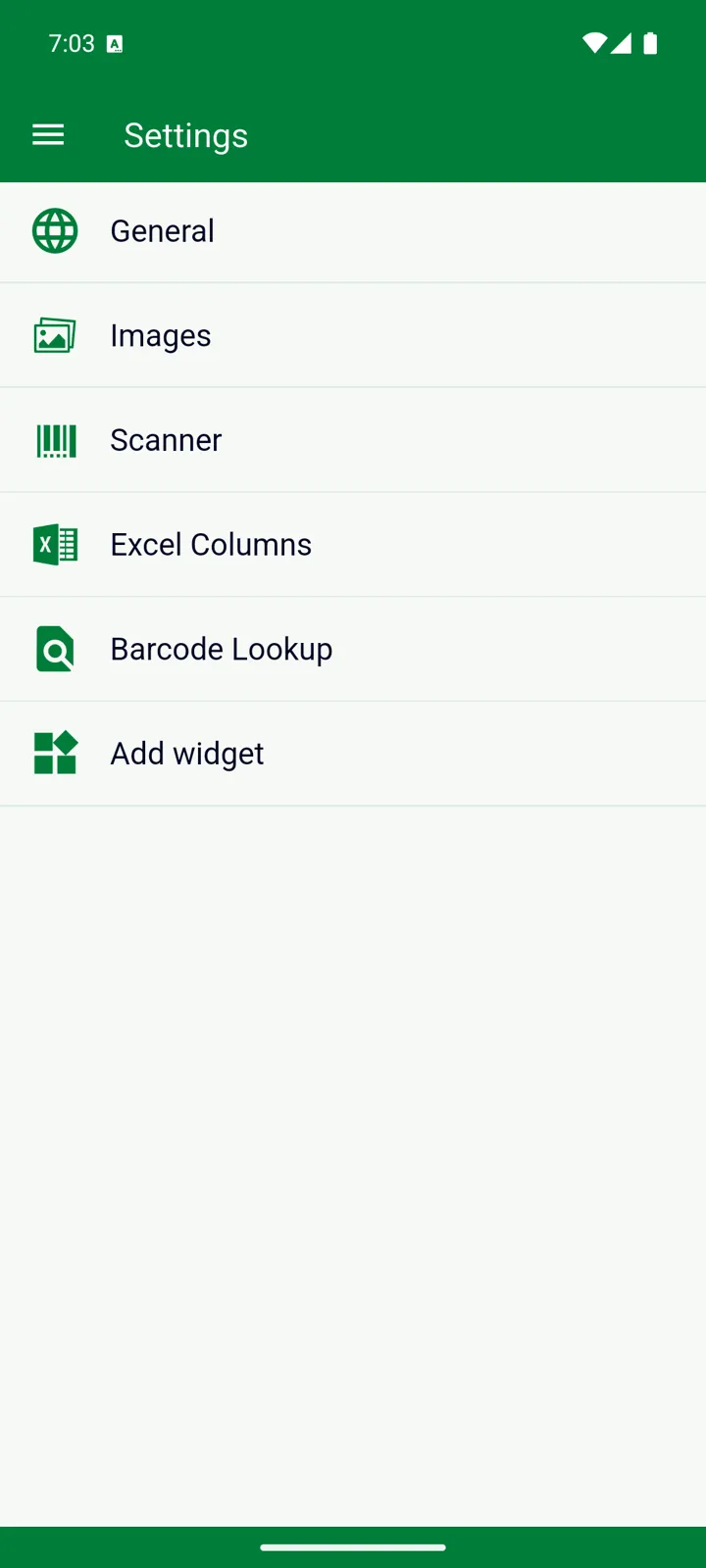
General
Section titled “General”| Setting | What it does | Starts as |
|---|---|---|
| App theme | System, Light theme or Dark theme. | System |
| Number of Days for “Expires Soon” | How early the colour bar and the “expires soon” reminder kick in. See Expiry dates and notifications. | 6 days |
| Show Notifications For | The three daily reminders — “Already Expired”, “Expires Soon”, Minimum quantity. Greyed out until the phone’s permission is granted; tap to ask. | all on |
| Notification Time | When the daily reminder arrives. | 6:00 PM |
| Calendar Style | How you enter dates: Standard calendar, Spinner, or Manual typing. | Standard |
| Currency | The symbol used for prices and totals. System follows your phone’s region. | System |
| Delete Account | Removes your account and everything in it, after signing in again to confirm. See Accounts and sign-in. | — |
The reminder settings aren’t shown in the web version, which doesn’t send notifications.
Images
Section titled “Images”- Image size - width and height (pixels) — photos are scaled down to this on the longest side before upload. Starts at 1080; smaller means faster.
- Square Images — crop every photo to a square.
- Disable Images — hides photos everywhere, on every device you’re signed in on. Nothing is deleted; switch it off and they’re back. Handy on a slow connection.
Adding photos is a Premium feature; these settings are for everyone. See Free vs Premium.
Scanner (Android)
Section titled “Scanner (Android)”Which barcode scanner InvenDo uses and how it behaves, plus support for external hardware scanners. See Scanner settings.
Excel Columns
Section titled “Excel Columns”Which spreadsheet column holds which field, for the Inventory and the Shopping List separately. See Excel export and import.
Barcode Lookup
Section titled “Barcode Lookup”Whether InvenDo looks up new barcodes online. See Product lookup. Not shown in the web version.
Add widget (Android)
Section titled “Add widget (Android)”Puts the Shopping List on your home screen. See Android widget.
What’s per device
Section titled “What’s per device”Three kinds of choice stay on the device you make them on: the grouping buttons in the toolbar (categories, storage places, stores), which list you’re looking at, and the last-used category and storage place that new items are pre-filled with. Everything in Settings, and everything under ⋮ → View Options, follows your account.
The rest of the menu ☰
Section titled “The rest of the menu ☰”- The version you’re running is under the app name at the top of the menu.
- Subscriptions — your plan, Change plan, and under ⋮ the Manage and Restore purchases actions. See Free vs Premium.
- Questions or suggestions — write to us. Pick Bug report, Feedback, Suggestion or Question, and your email app opens with a message addressed to support that already carries the app version and your device model — just describe the problem. If no email app is set up, the message is copied to the clipboard instead: No email client available. Content copied to clipboard.
- Help — this site. What’s new — the release notes.
- Privacy policy and Terms of Use.
- Log in / Log out — see Accounts and sign-in.
Still need help? Contact us