
Opened items
The date printed on a pack is only half the story: opened milk, sauce or juice keeps for days, not weeks. Mark an item as opened and InvenDo works out a Consume by date from the day you opened it, shows how long ago that was, and warns you before it goes off — while the unopened ones keep their printed date.
Mark an item as opened
Section titled “Mark an item as opened”-
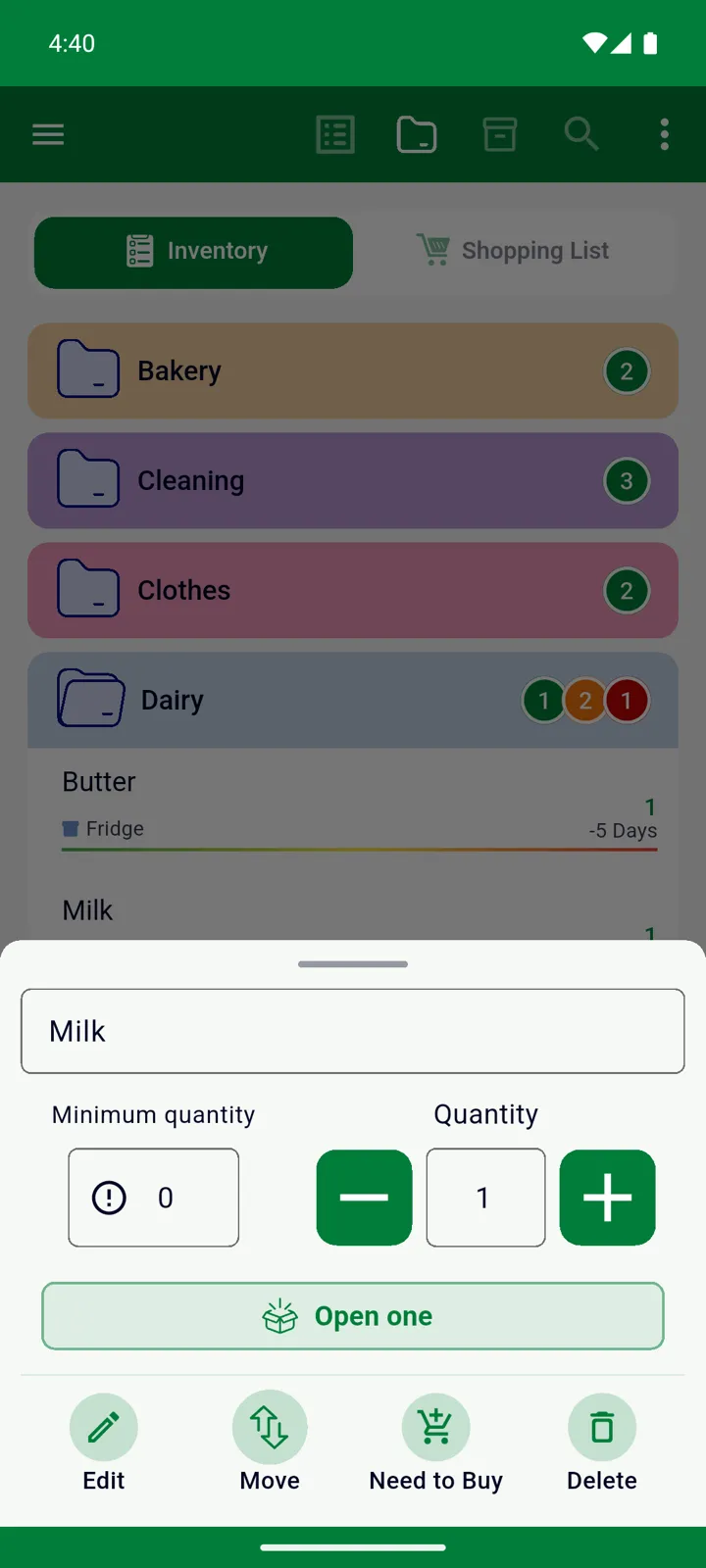
In your Inventory, tap the item to open the quick panel.
-
Tap Open one.
-
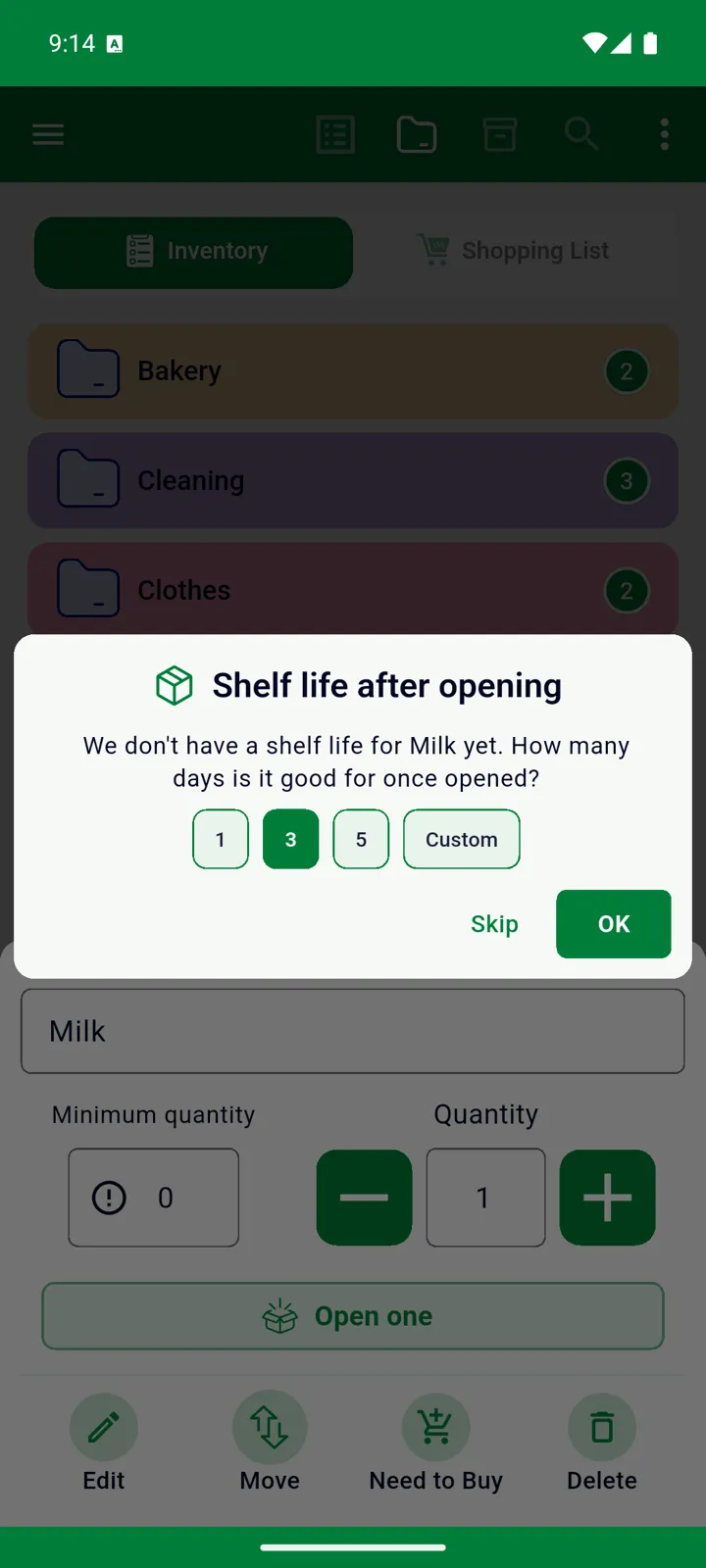
The first time you open a product, InvenDo asks: We don’t have a shelf life for Milk yet. How many days is it good for once opened? Pick 1, 3 or 5 days, or tap Custom to enter your own number. Tap Skip if you don’t know.
That’s it. InvenDo remembers the shelf life for that product, so the next time you open one there’s no question — the date is set for you.
What happens to the item
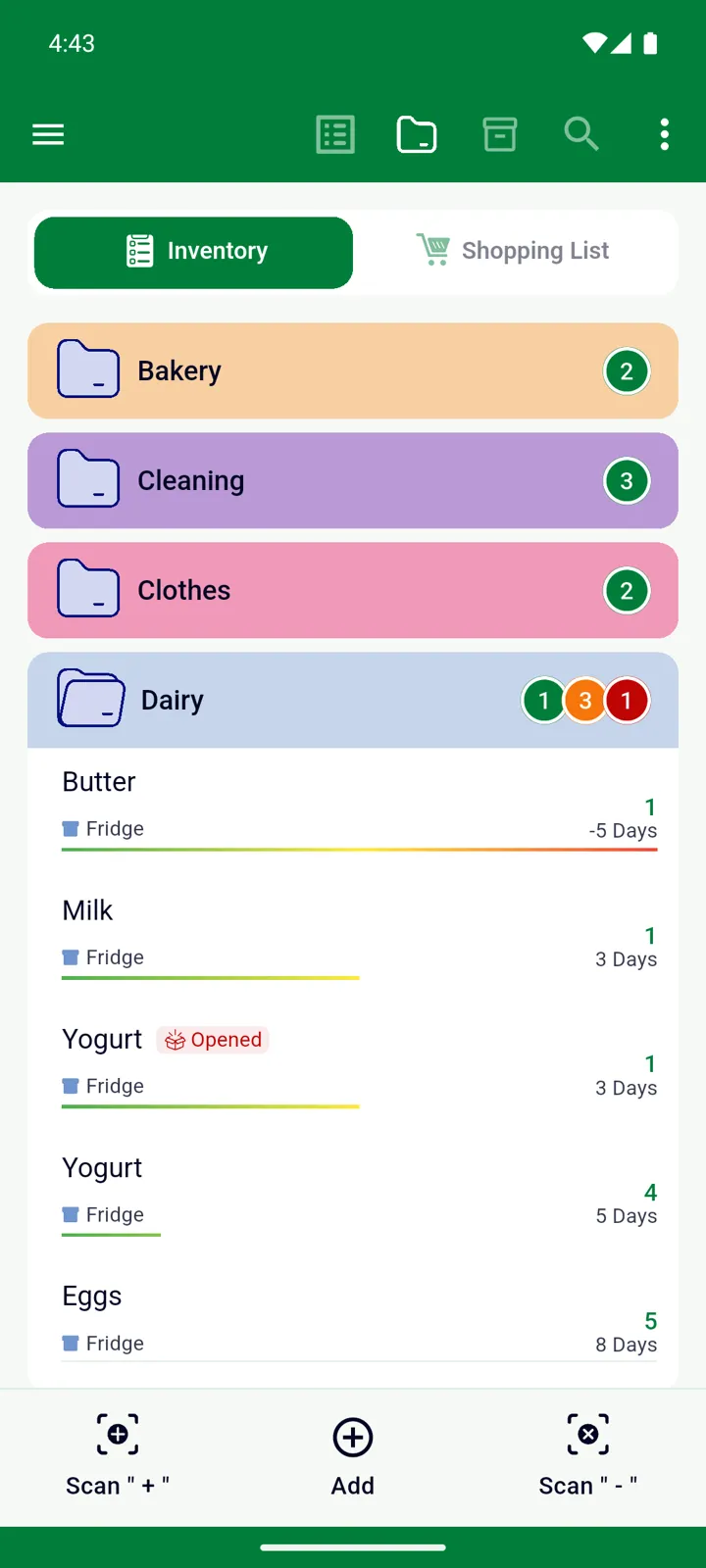
Section titled “What happens to the item”- If you had several — five yogurts, say — one becomes its own entry marked Opened, with the consume-by date, and the other four stay as they were with the printed date.
- If you had just one, it is simply marked as opened.
- Open another one the same day and it joins the opened entry; open one on a different day and it gets its own entry, because it goes off on a different day.
- The quick panel shows when the item was opened — Today, 3 days ago — and the list shows an Opened badge.
The consume-by date
Section titled “The consume-by date”InvenDo takes the day you opened the item, adds the shelf life, and uses that date — unless the printed expiry date is earlier, in which case the printed date wins. Opening something never gives it more time, only less. If a product has no printed date at all, opening it gives it one.
From then on, the consume-by date is what the list, the colour bar, the sorting and the daily reminders use. See Expiry dates and notifications.
Changing the shelf life
Section titled “Changing the shelf life”The shelf life is stored with the product in the catalog, so it applies to every future pack.
-
Open Manage → Catalog and tap the product.
-
Under Shelf life after opening (Days), pick 1, 3 or 5, tap Custom for another number, or choose Not tracked to be asked again next time.
-
Tap ✓ to save.
You can also adjust a single opened item: tap it, choose Edit, and change Opening date, Days or Consume by directly. Tapping the Days box sets the consume-by date that many days after the opening date.
Opened by mistake? Tap the item and choose Undo. It goes back to the printed date and rejoins the unopened ones, if there are any.
Turning the feature off
Section titled “Turning the feature off”If you don’t need opened-item tracking on a list, open Manage → Features and Fields and untick Shelf life after opening (it sits under Expiry date). The Open one button, the Opened badge and the shelf-life field disappear; anything already opened keeps its dates and comes back unchanged if you turn the feature on again.
You can also switch it off for a single category — say, Cleaning — under Enabled fields when editing the category in Manage → Categories.
Good to know
Section titled “Good to know”- Opened-item tracking is free and works on every platform, including the web version.
- Opening from the quick panel takes effect immediately. If you tap Open one inside the full Edit form instead, nothing changes until you tap ✓.
- Excel export doesn’t include the opened state or the shelf life; items imported back from Excel come in as unopened. See Excel export and import.
Still need help? Contact us