
Manage overview
Open the menu ☰ and tap Manage. This is where you shape how a list is organised: which products it knows about, which categories and storage places it uses, which features are switched on, and who can see it.
Manage is about your data; Settings is about the app — theme, colour warnings, notifications, calendar style, currency, images, the scanner and Excel columns (see Settings overview). If you’re looking for where a product, category or storage place is edited, it’s in Manage. If you’re looking for the reminder time or the theme, it’s in Settings.
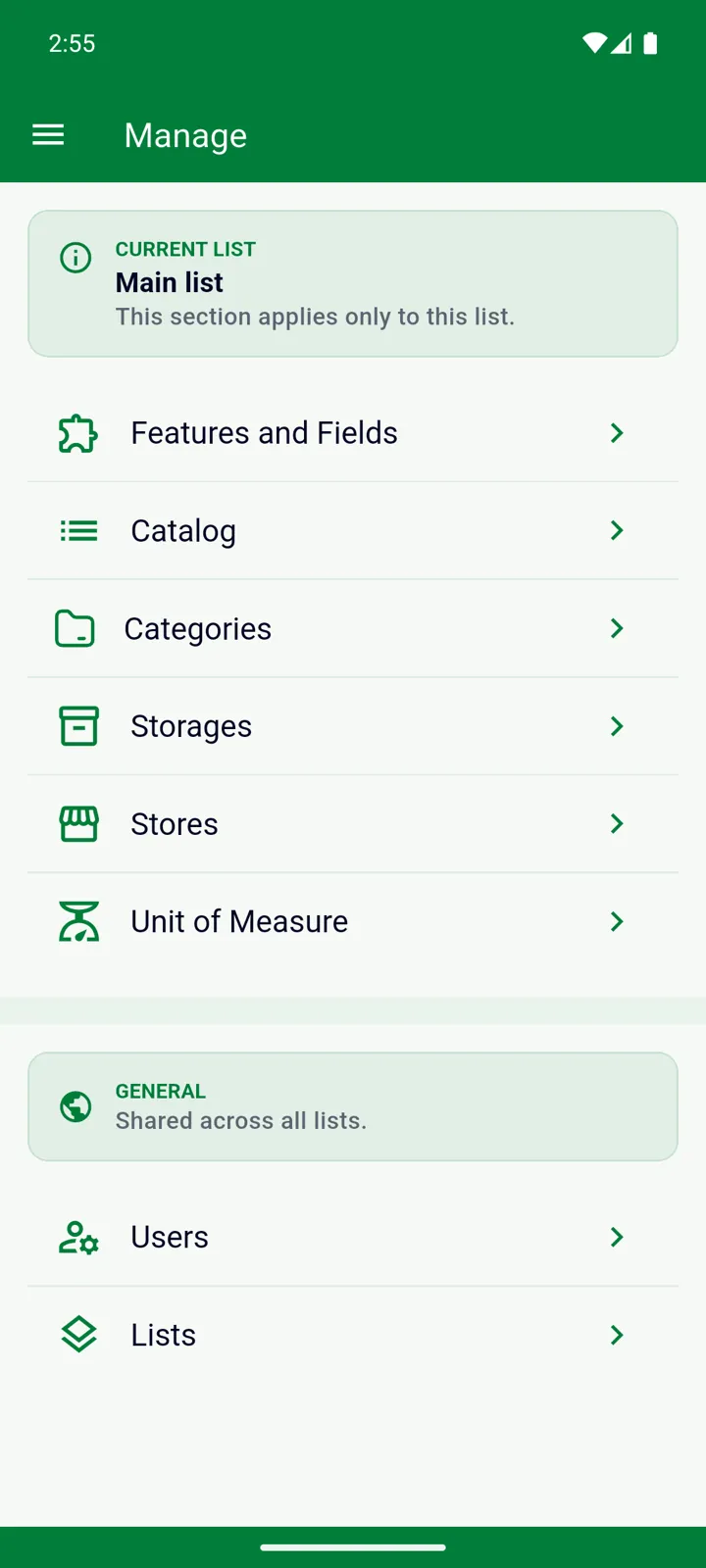
The screen has two sections.
Current list — “This section applies only to this list.”
Section titled “Current list — “This section applies only to this list.””The card at the top names the list you’re working in right now. Everything in this section belongs to that list only — each list has its own catalog, categories, storage places, stores and units.
Features and Fields
Section titled “Features and Fields”Turn parts of InvenDo on or off for this list: categories, storage places, stores, minimum quantity, expiry dates, shelf life after opening, price and units of measure. Whatever you turn off disappears from the item forms and lists, which keeps things simple if, say, you never track prices. This is also where you choose whether items are deleted automatically when their quantity reaches zero.
Only the list’s owner sees this entry; on a list someone shared with you it’s hidden. See Features and Fields.
Catalog
Section titled “Catalog”The list’s product directory: one record per product with its name, barcodes, category, preferred store, unit, price, minimum quantity and shelf life after opening. InvenDo builds the catalog for you as you add items and uses it for name suggestions and barcode recognition. See Catalog.
Categories
Section titled “Categories”Create and colour categories, nest subcategories inside them (nesting deeper than one level is a Premium feature), and set a minimum quantity or a fixed unit for a whole category. See Categories.
Storages
Section titled “Storages”Your storage places — fridge, freezer, pantry, garage shelf, a particular box — arranged as a tree, so “Freezer” can sit inside “Kitchen”. Give each one a colour; icons and photos are Premium. See Storage places.
Stores
Section titled “Stores”The shops you buy from. Give an item a preferred store and the Shopping List can be grouped by store, so you see what to pick up where. See Stores.
Unit of Measure
Section titled “Unit of Measure”The units available for quantities — pcs, pack, kg, g, L and ml to begin with. Add your own or remove the ones you never use. See Units and unit size.
General — “Shared across all lists.”
Section titled “General — “Shared across all lists.””The lower section applies to your account as a whole, not to any single list.
Give family members access to your lists by email, choose which lists each person can see, and remove access again. Inviting others is a Premium feature; the people you invite use your lists for free. See Share with family.
Create additional lists — one for the summer house, one for the office — rename or delete them, and switch between them. Creating extra lists is a Premium feature. You can also switch lists from the menu ☰, where the current list’s name is shown at the top. See Multiple lists.
Still need help? Contact us