
Excel export and import
Every list in InvenDo can go out as an .xlsx file — a backup, something to print, a way to work on it in a spreadsheet — and, with Premium, come back in. Both use the same column layout, which you can adjust.
Exporting
Section titled “Exporting”-
Open the tab you want — Inventory or Shopping List. The export covers the tab you’re on.
-
Tap ⋮ → Export to Excel. The first time, InvenDo asks Do you wish to set Excel columns? — No keeps the standard layout; tick Do not show again if you’d rather not be asked.
-
Choose Open (in your spreadsheet app), Share (to email, a message, cloud storage) or Save (to a folder). In the browser the file downloads straight away.
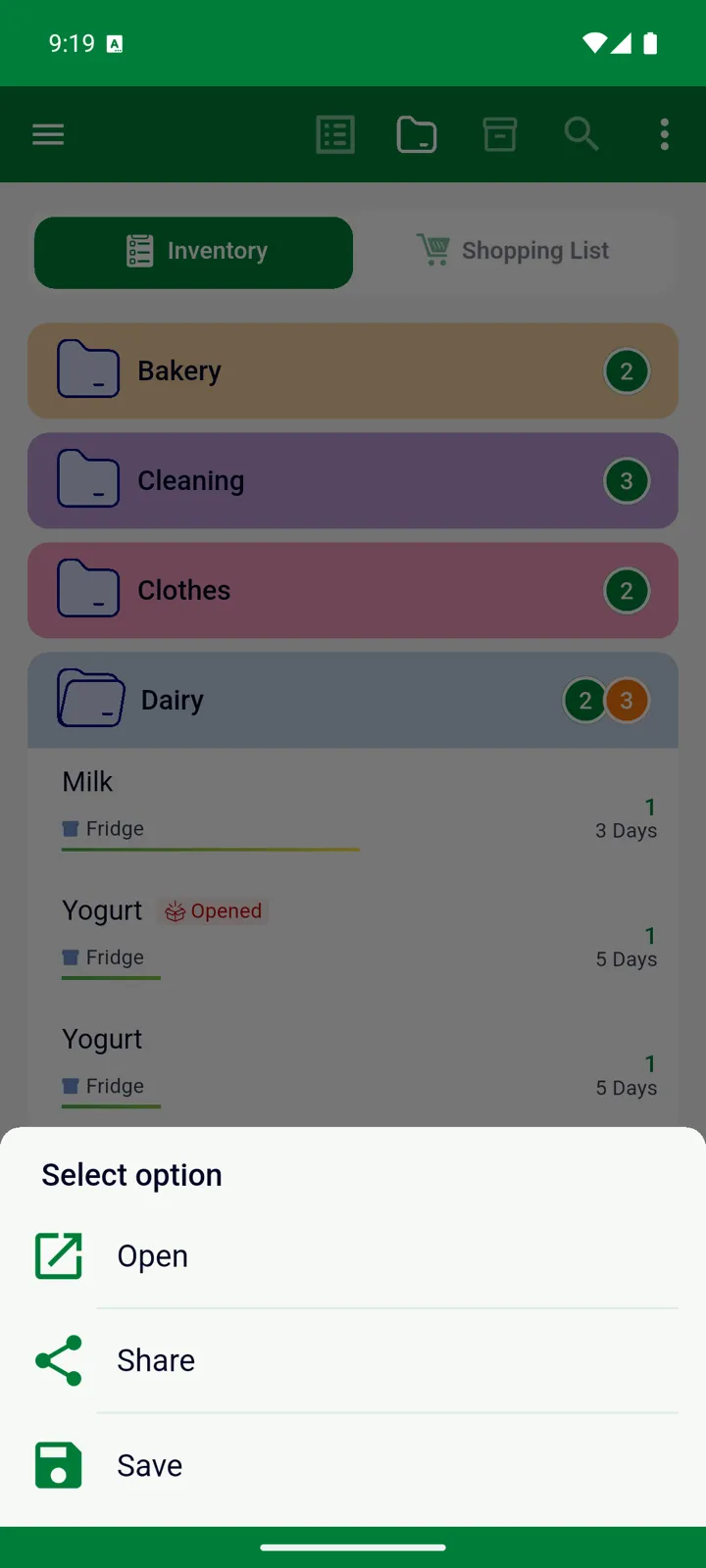
The file is named like food_list_20260829_1830.xlsx or shopping_list_….xlsx, with a header row and one row per item. Export is free.
With the standard layout the Inventory file has Storage, Categories, Item name, Expiry date, Quantity and Description; the Shopping List file has Store name, Categories, Item name, Quantity, Price and Description. Price, barcode, unit, minimum quantity and manufacture date can be added — see Excel columns below. Photos and the opened state of items aren’t exported.
Importing (Premium)
Section titled “Importing (Premium)”-
Prepare the file: data on the first sheet, a header row on row 1, and the columns in the layout under Settings → Excel Columns (the standard one is above). Only the name column is required. Exporting first and editing that file is the easiest way to get the layout right.
-
Open the tab you’re importing into and tap ⋮ → Import from Excel. You’ll need an internet connection.
-
Choose Add to the existing list — new rows join what’s there — or Replace the existing list, which first removes every item on that tab of this list.
-
Pick the file. Importing… runs, then Import finished.
How rows become items:
- Categories, stores, storage places and units named in the file are matched to yours, or created if they don’t exist. Category names must match exactly, capitals included.
- A row with the same name, expiry date and storage place as an existing item is added to that item’s quantity; anything else becomes a new item.
- A product name already in your catalog keeps its catalog details; a new name gets a catalog entry with the price, barcode, unit and description from the file.
- Dates and numbers in the usual formats are understood; a value that can’t be read is left empty. Rows without a name are skipped.
- If anything goes wrong, nothing is imported — the list is left exactly as it was.
Excel columns
Section titled “Excel columns”Settings → Excel Columns → Inventory or Shopping List. Tap a field and pick the column letter it lives in, or Do not use. A letter can hold only one field (Already used). The layout is used for both export and import, and it syncs to your other devices. See Settings overview.
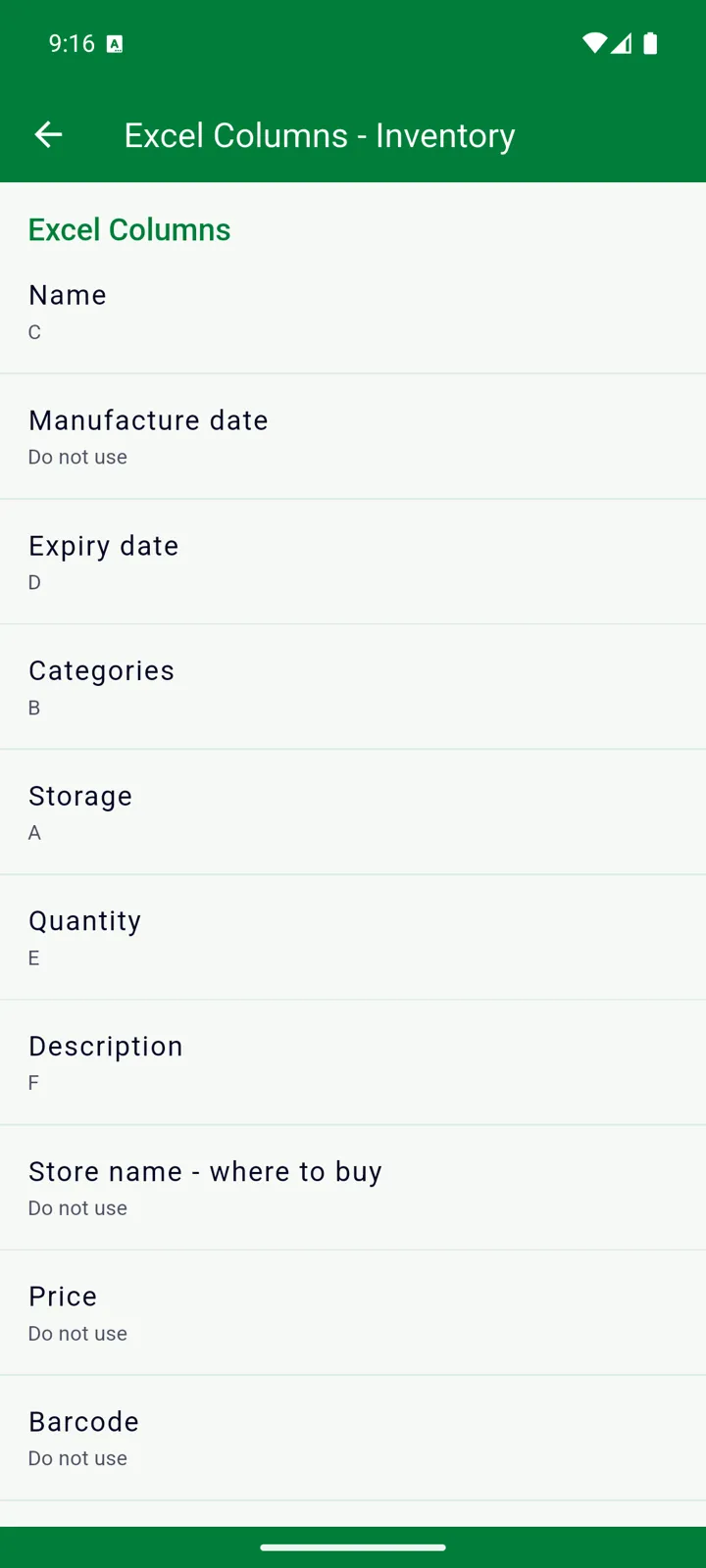
| Field | Inventory | Shopping List |
|---|---|---|
| Storage | A | — |
| Store name | not used | A |
| Categories | B | B |
| Name | C | C |
| Expiry date | D | — |
| Quantity | E | D |
| Price | not used | E |
| Description | F | F |
| Manufacture date, Minimum quantity | not used | — |
| Barcode, Unit of Measure | not used | not used |
Good to know
Section titled “Good to know”- An export is a good backup before big changes — replacing a list with an import, deleting a list, or deleting your account.
- The opened state and shelf life of opened items don’t survive a round trip; re-imported items come in as unopened.
- Only a product’s first barcode is exported.
Still need help? Contact us