
Android widget
On Android, InvenDo’s Shopping List can live on your home screen as a widget. You see what’s left to buy without opening the app, tap an item to cross it off, and the change reaches your phone’s app — and everyone you share the list with — in the background.
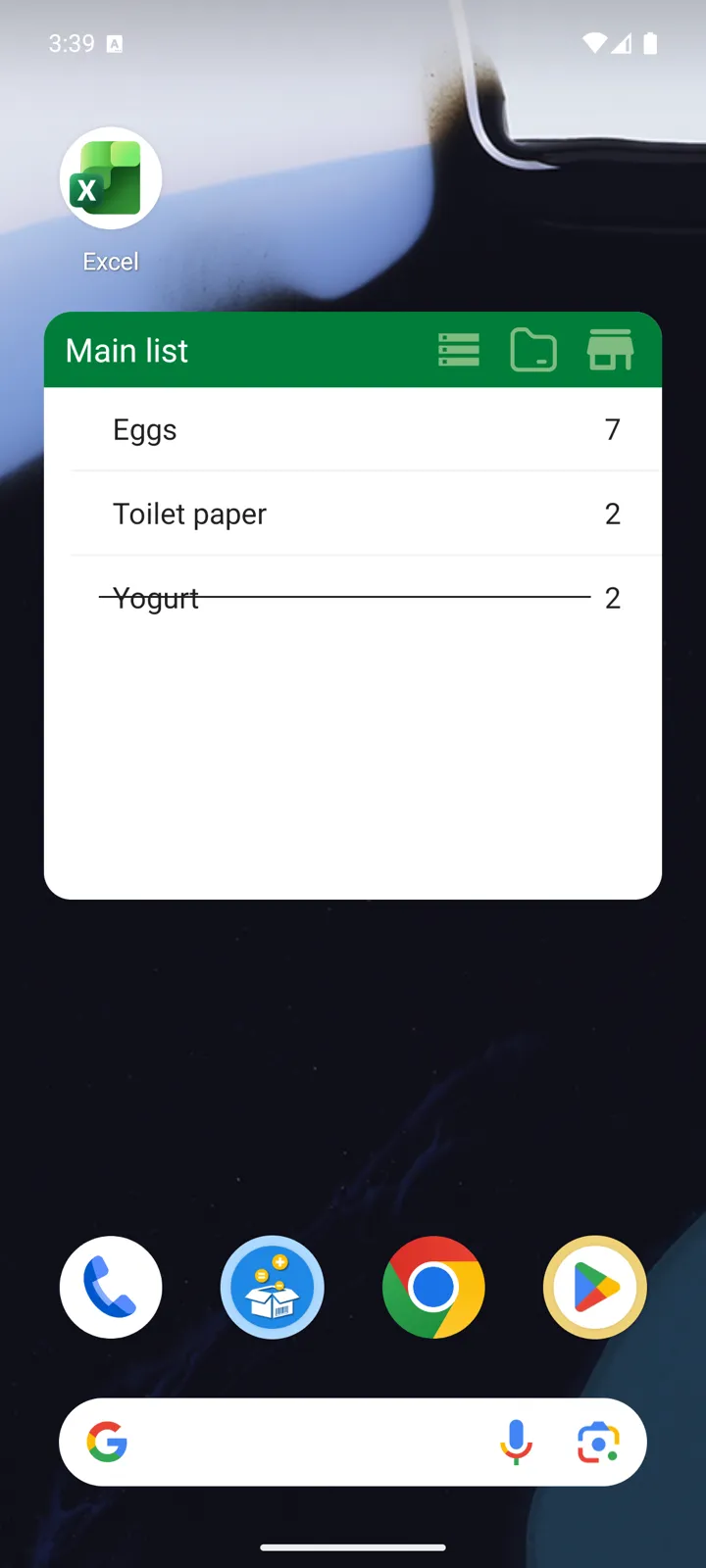
Adding the widget
Section titled “Adding the widget”-
Open the menu ☰ → Settings → Add widget.
-
Tap Add widget in the preview, then confirm when Android asks.
InvenDo also offers this once by itself — Add a home screen widget — the first time you put something on the Shopping List.
If nothing happens after step 2, your phone’s launcher doesn’t support adding widgets from inside apps (that needs Android 8 or newer). Add it the usual way instead: press and hold an empty spot on the home screen, choose Widgets, find InvenDo and drag it out. Drag the widget’s edges to make it taller — it scrolls, so a taller widget simply shows more.
What you see
Section titled “What you see”- The green header names the list. If you have more than one list, a Lists button lets you switch the widget to another; the Categories and Stores buttons group the items the same way the app does.
- Below it, each item with its quantity. Crossed-off items have a line through them and sit at the bottom.
- Tap a category to expand or collapse it; tap a store to open it, and the back arrow to return.
Crossing things off
Section titled “Crossing things off”Tap an item — that’s it. It’s crossed off in the widget immediately and sent to the app in the background; tap again to bring it back. Tapping an item never opens the app, so nothing pops up in your hand while you’re shopping.
Keeping it up to date
Section titled “Keeping it up to date”- While the InvenDo app is open, the widget updates instantly.
- Otherwise it refreshes itself every half hour or so, when your phone has internet.
- To refresh it right now, open the app.
You may occasionally notice a quiet notification, Shopping list sync in progress, for a few seconds — that’s Android letting the widget do its work; it needs no action.
Good to know
Section titled “Good to know”- You can cross things off without a connection; the changes are uploaded when you’re back online.
- The widget shows names, quantities and what’s crossed off — not prices, units or photos. For everything else, tap the app icon.
- There’s no widget on iPhone or in the web version.
Still need help? Contact us