
Expiry dates and notifications
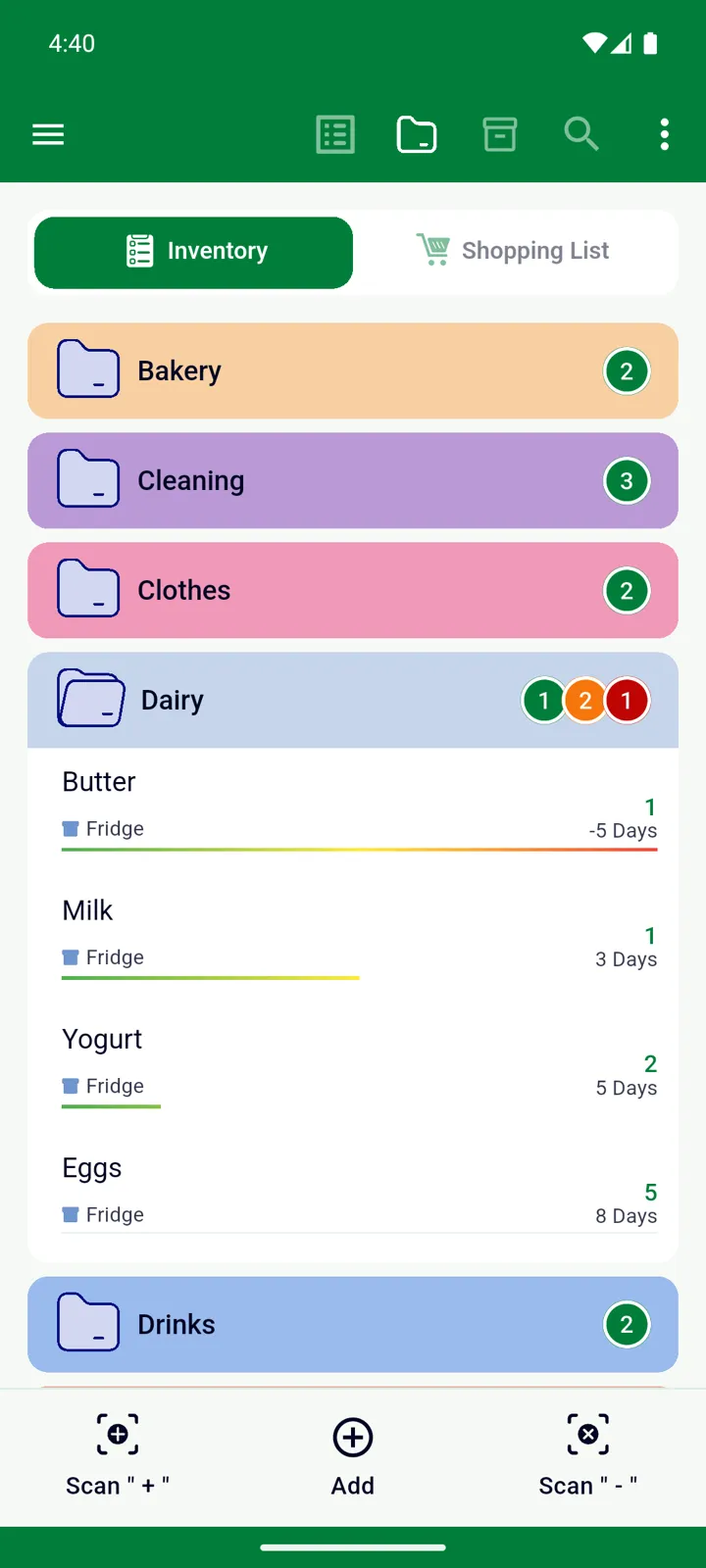
Give an item an expiry date and InvenDo does the watching for you: the list shows how many days are left, a colour bar warns you as the date approaches, and a daily notification tells you what has expired, what’s about to, and what’s running low.
Entering an expiry date
Section titled “Entering an expiry date”-
Add or edit an item. The Expiry date switch at the top of the form is on by default.
-
Tap Expiry date and pick the date from the pack.
-
Tap ✓ to save.
A few things that make this quicker:
- “Best within N days of production”? Enter the Manufacture date, then type the number in the Days box between the two dates — InvenDo works out the expiry date.
- Calendar style. The first time you tap a date field, InvenDo asks how you’d like to enter dates: a Standard calendar, a Spinner, or Manual typing. Change your mind later in Settings → General → Calendar Style.
- Things that don’t expire. Switch Expiry date off for the item and the date fields disappear. InvenDo remembers that for the product. To hide expiry dates for a whole category — clothes, tools — open Manage → Categories, edit the category and untick Expiry date under Enabled fields. To hide them for the whole list, use Manage → Features and Fields.
What you see in the list
Section titled “What you see in the list”- Each item shows either its expiry date or the days left. Choose which in the ⋮ menu → View Options → Expiry date (Show Expiry Date or Show Days to Expire; Date under Name puts it on its own line). See Viewing and finding items.
- Once an item is inside the “Expires Soon” window, a colour bar appears beneath it. The bar runs from green through yellow to red and reveals more of itself as the date approaches; an expired item shows the full bar and a negative day count, such as -3 Days.
- Category and storage headers carry small counters: green for items that are fine, orange for items expiring within the next week, red for expired ones.
- Sorting by Expiry date (⋮ → View Options → Sort By) puts what expires next at the top. Items without a date go last.
The “Expires Soon” window
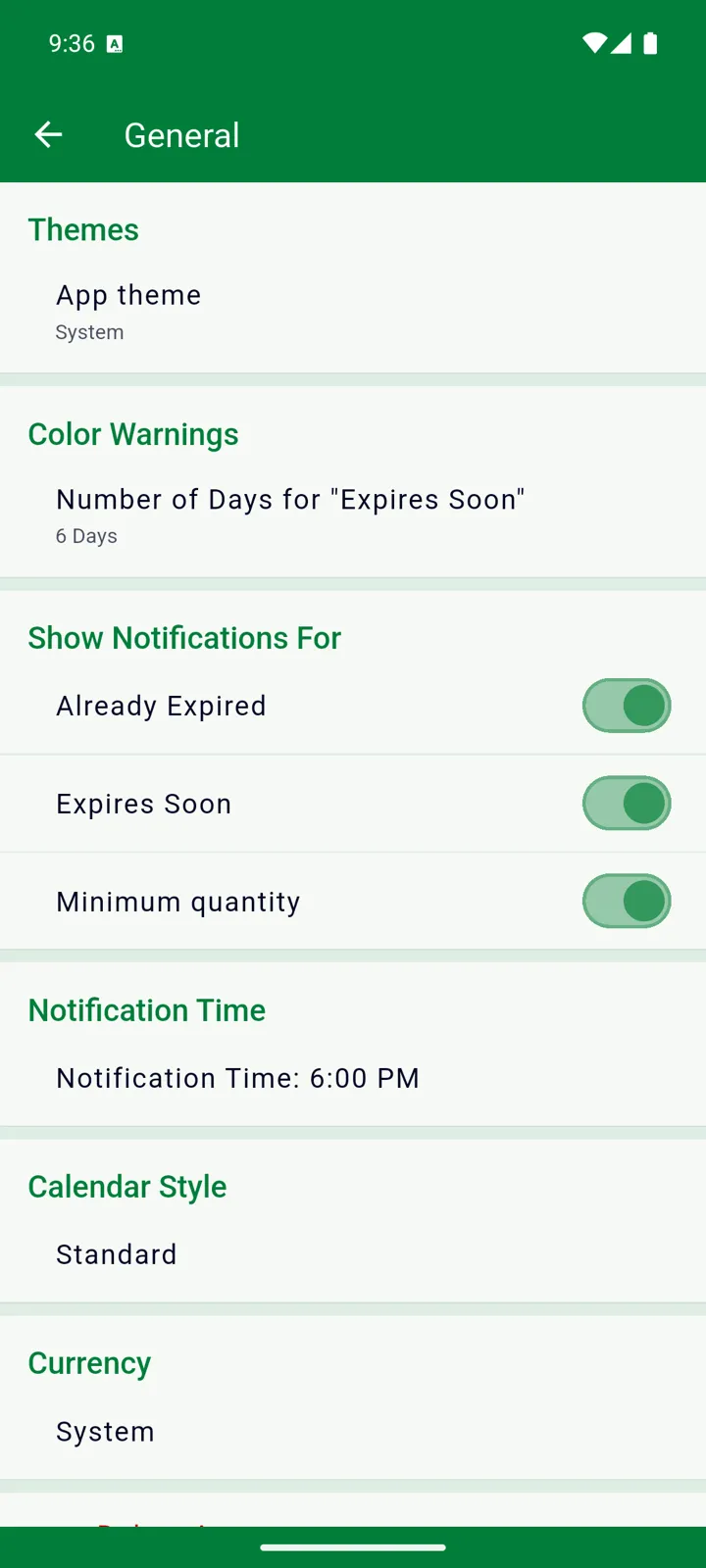
Section titled “The “Expires Soon” window”How early should InvenDo start warning you? Open Settings → General and, under Color Warnings, set Number of Days for “Expires Soon”. The default is 6 days. This one number controls both the colour bar and the “Expires Soon” reminders, and it follows you across your devices.
Daily reminders
Section titled “Daily reminders”InvenDo sends up to three kinds of notification, once a day:
| Reminder | What it says | Tapping it opens |
|---|---|---|
| ”Already Expired” | One notification per item, e.g. Milk expired | The item |
| ”Expires Soon” | One per item, e.g. Yogurt expires in 3 days or expires today | The item |
| Minimum quantity | One per list: Item quantity below the minimum! | The Low Quantity Items screen |
Reminders cover all your lists. If you have more than one, the list’s name is added to the message. Items with a quantity of zero are ignored.
Turning reminders on
Section titled “Turning reminders on”The first time you open InvenDo, it asks Don’t miss important reminders — tap Turn On Notifications and allow it when your phone asks, and all three reminders are switched on.
If you tapped Not now, or you’d like to change things later:
-
Open the menu ☰ → Settings → General.
-
Under Show Notifications For, switch on “Already Expired”, “Expires Soon” and Minimum quantity as you wish. If the section looks greyed out, tap it — InvenDo needs your phone’s permission first.
-
Under Notification Time, choose when the daily reminder should arrive. The default is 6:00 PM.
Good to know
Section titled “Good to know”- Reminders arrive on the phone or tablet where InvenDo is installed and allowed to notify you. The settings sync between your devices, but each device shows its own notifications.
- If reminders stop arriving, check that notifications for InvenDo are still allowed in your phone’s settings — tapping the greyed-out Show Notifications For section takes you straight there. On iPhone, a Focus mode can silence them, and a Scheduled Summary delivers them at the summary time instead of your Notification Time. On Android, aggressive battery-saving modes can delay scheduled reminders — allow InvenDo to run in the background if that happens.
- The web version at web.invendo.app shows the same dates and colour warnings but doesn’t send notifications. See InvenDo on the web.
- Low-stock reminders are explained in Minimum quantity and low stock.
Still need help? Contact us