
Cantidad Mínima y baja cantidad
Dile a InvenDo cuánto quieres tener siempre de algo — seis huevos, dos rollos de papel higiénico — y marcará el artículo en cuanto bajes de esa cantidad. Un recordatorio diario te avisa de que algo se está acabando, y una sola pantalla reúne todo lo que hay que comprar.
Establecer un mínimo para un artículo
Sección titulada «Establecer un mínimo para un artículo»-
Toca el artículo en tu Inventario (o ábrelo con Editar). Consulta Añadir y editar artículos.
-
Introduce un número en Cantidad Mínima, junto a la cantidad.
-
Toca ✓ para guardar.
El mínimo pertenece al producto, no a un envase concreto: si guardas leche en la nevera de la cocina y en la del garaje, InvenDo suma las dos y compara el total con el mínimo. Deja el campo vacío o en 0 para las cosas que no quieras controlar.
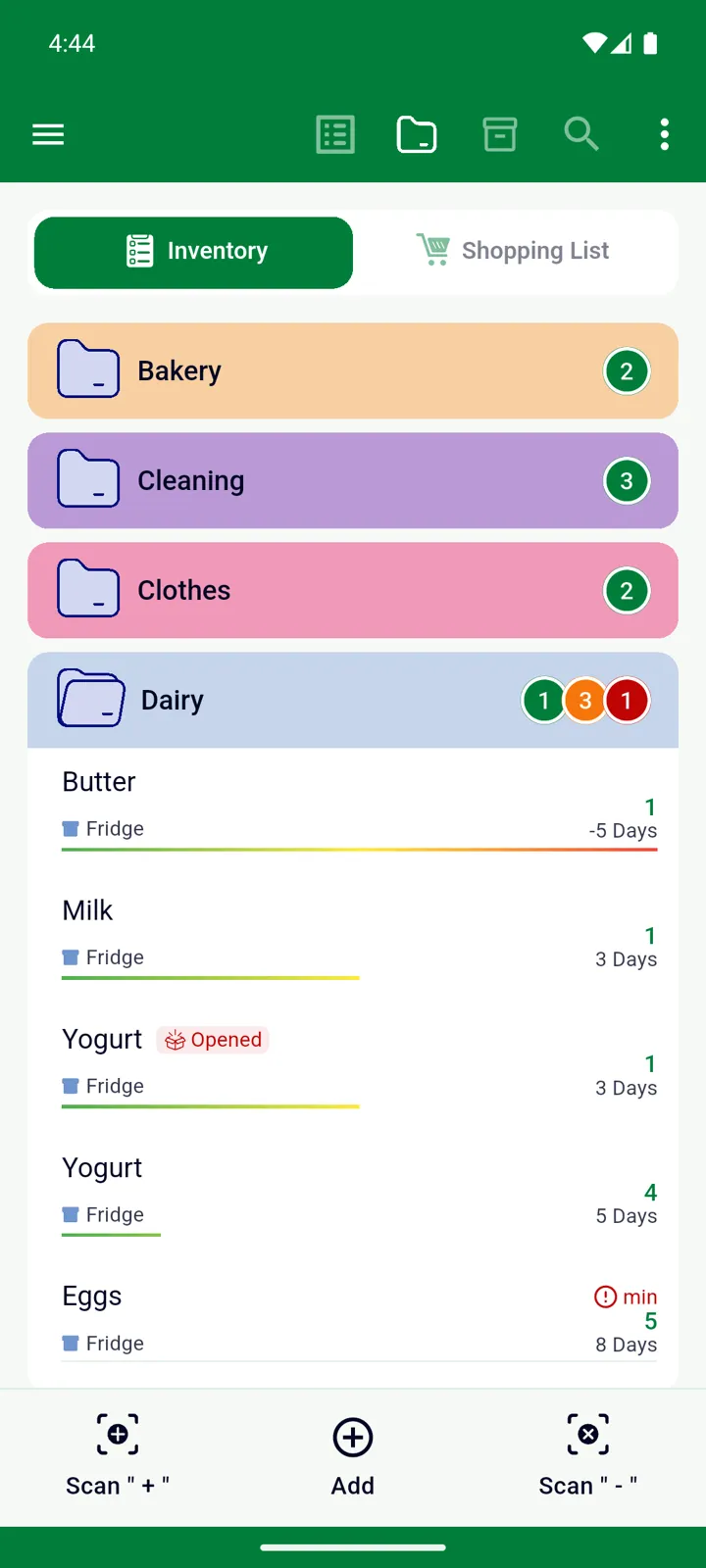
Un artículo cuenta como “de baja cantidad” en cuanto su total queda por debajo del mínimo — seis huevos con un mínimo de seis está bien; con cinco ya queda poco. Los artículos de baja cantidad muestran una pequeña etiqueta roja min en la lista; actívala una vez en ⋮ → Opciones de vista → Mostrar campos → Cantidad Mínima, porque viene desactivada.
Establecer un mínimo para toda una categoría
Sección titulada «Establecer un mínimo para toda una categoría»A veces lo que importa es el total, no un producto en concreto — “al menos 10 latas de lo que sea en la categoría Conservas”. Abre Gestionar → Categorías, edita la categoría, activa Cantidad total mínima e introduce la cantidad. La categoría necesita entonces una unidad, porque todo lo que contiene se suma en esa unidad; si aún no la has elegido, InvenDo te pedirá una. Consulta Unidades y tamaño de unidad. Las subcategorías cuentan para su categoría superior.
Una categoría que está por debajo de su mínimo muestra la misma etiqueta roja min en su encabezado.
La pantalla Artículos de baja cantidad
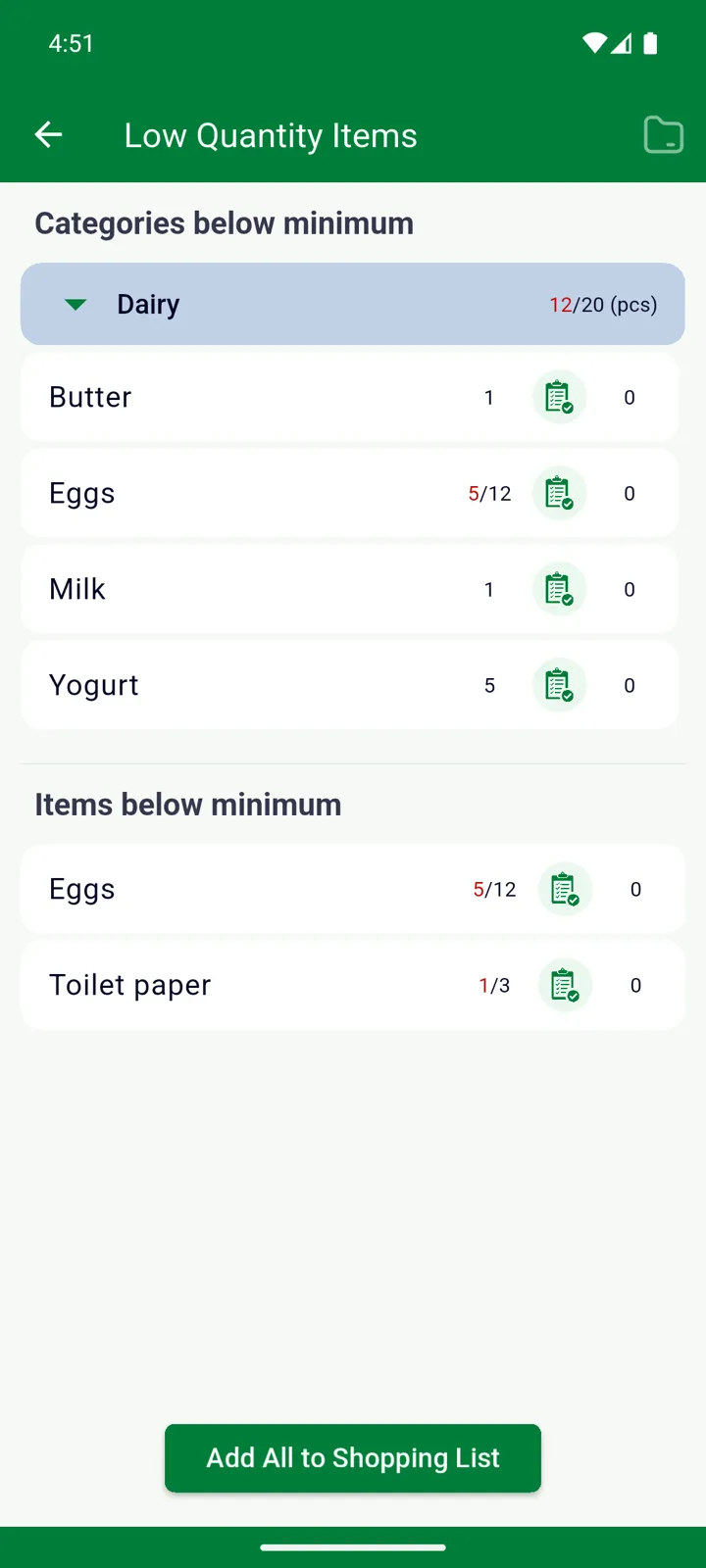
Sección titulada «La pantalla Artículos de baja cantidad»En cualquiera de las dos pestañas, abre el menú ⋮ y toca Artículos de baja cantidad. Si tocas el recordatorio diario de baja cantidad, se abre esta misma pantalla.
Tiene dos partes:
- Categorías por debajo del mínimo — cada una con su total actual frente al mínimo. Toca una para ver qué contiene.
- Artículos por debajo del mínimo — todos los productos que están por debajo de su propio mínimo, con lo que tienes, lo que necesitas y cuántos hay ya en la Lista de Compras.
Toca el icono del carrito junto a un artículo para añadirlo a la Lista de Compras — se te preguntará cuántos. Consulta Usar la Lista de Compras.
Agregar todo a la Lista de Compras
Sección titulada «Agregar todo a la Lista de Compras»El botón Agregar todo a la Lista de Compras de la parte inferior lo repone todo de una vez: para cada artículo de baja cantidad añade exactamente lo que falta — el mínimo, menos lo que tienes, menos lo que ya está en la lista — así que, si lo pulsas dos veces, nunca se pide el doble. Las categorías que están bajas en su conjunto no se añaden automáticamente: los productos tienes que elegirlos tú.
Agregar todo a la Lista de Compras es una función Premium. Añadir artículos de uno en uno es gratis.
El recordatorio de baja cantidad
Sección titulada «El recordatorio de baja cantidad»Con los recordatorios activados, InvenDo envía una notificación al día por cada lista — ¡Cantidad de producto por debajo del mínimo! — siempre que algo esté por debajo de su mínimo. Al tocarla se abre la pantalla Artículos de baja cantidad. Actívalo o desactívalo en Configuración → General → Muestra notificaciones para → Cantidad Mínima; la hora se elige en Hora de notificación. Consulta Fechas de caducidad y notificaciones.
Conviene saber
Sección titulada «Conviene saber»- Para ocultar el campo de cantidad mínima en una lista en la que no lo uses, desmarca Cantidad Mínima en Gestionar → Funciones y campos. Para ocultarlo solo en una categoría, desmárcalo en Campos activados al editar la categoría.
- Que la cantidad mínima y la etiqueta min aparezcan en la lista depende de ⋮ → Opciones de vista → Mostrar campos → Cantidad Mínima: viene desactivado y es independiente de la función en sí. Consulta Ver y encontrar artículos.
- En una lista que alguien haya compartido contigo, puedes usar Agregar todo a la Lista de Compras aunque no tengas tu propia suscripción Premium.
¿Aún necesitas ayuda? Contáctanos