
Share with family
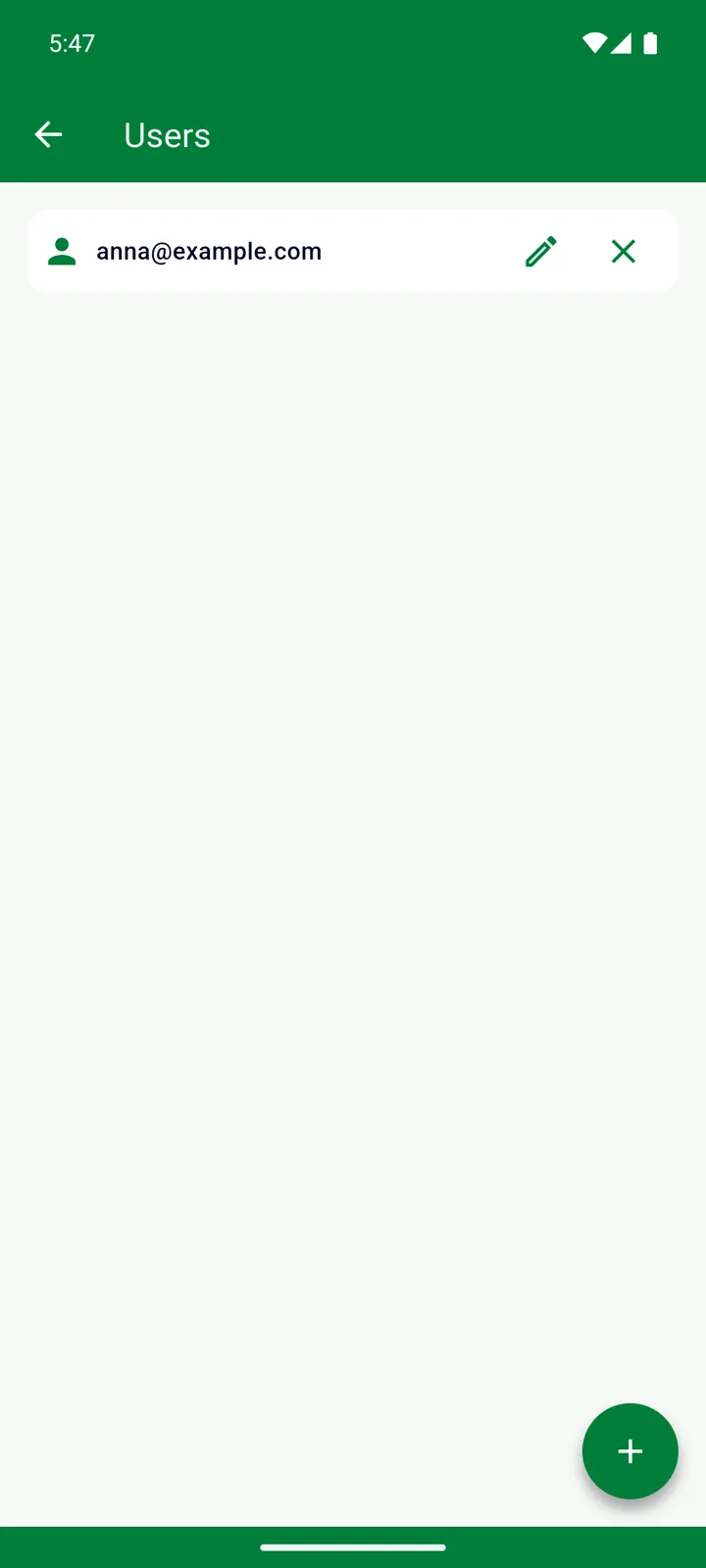
Manage → Users. Sharing lives in the General section of Manage, so it applies across all your lists: you decide, per person, which lists they can see.
Share a list and the whole household works on the same Inventory and Shopping List — whoever is at the shop sees what’s needed, and whatever anyone adds shows up on every phone within seconds.
Before you start
Section titled “Before you start”- You need to be signed in with a Google or Apple account. If you’re using InvenDo without an account (Android), open the menu ☰ and tap Log in first. See Accounts and sign-in.
- Inviting is a Premium feature — using a shared list is not. The people you invite don’t need Premium, and a list shared with them is never read-only.
- The person you invite needs the InvenDo app, signed in with exactly the email address you enter.
Invite someone
Section titled “Invite someone”-
Open the menu ☰, tap Manage, then Users.
-
Tap +.
-
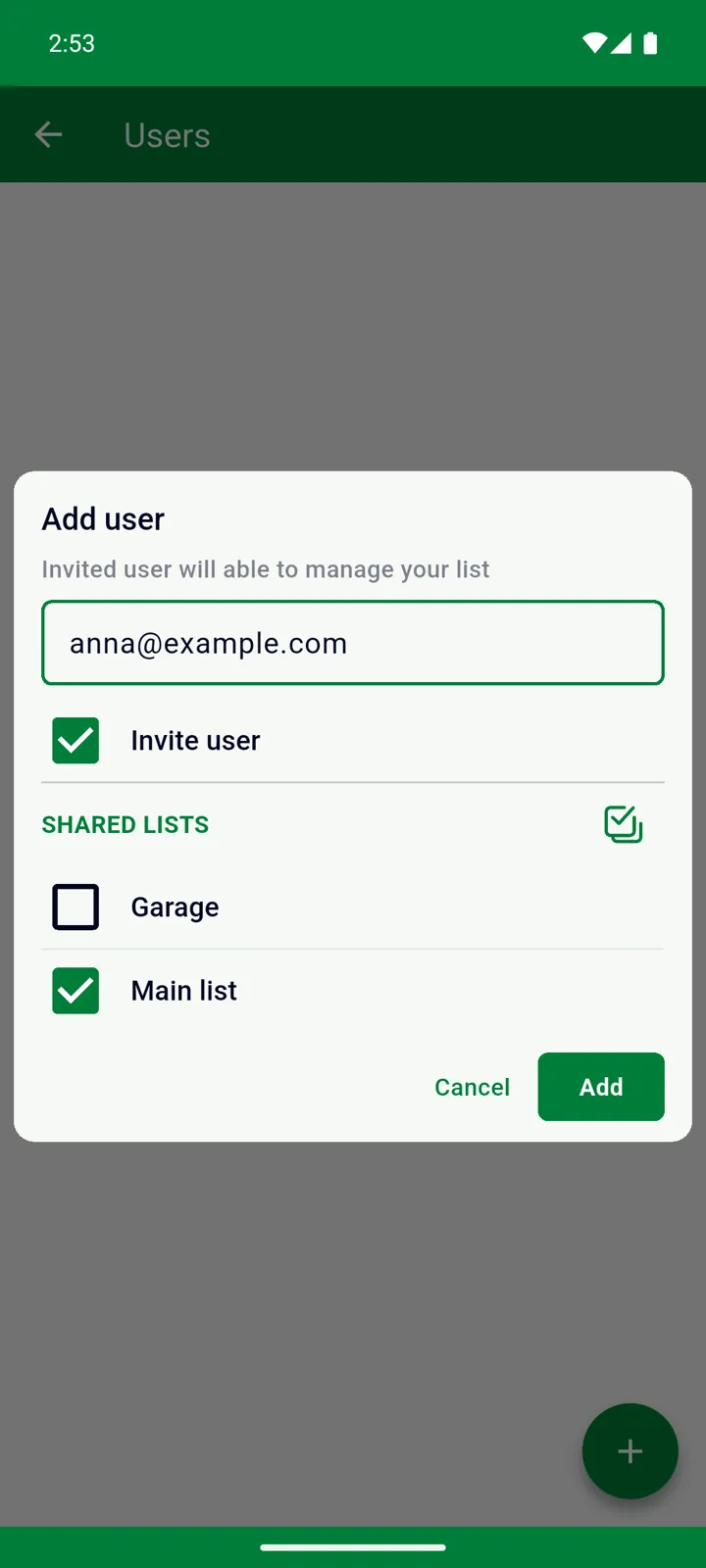
Enter the person’s email — the one they use (or will use) to sign in to InvenDo.
-
Under Shared lists, tick the lists they should see. At least one is required.
-
Leave Invite user ticked if you’d like to send them a note.
-
Tap Add. If Invite user was ticked, your email app opens with a ready-made invitation and download links — send it, or close it if they already have the app.
That’s all — there is nothing for them to accept. As soon as they sign in to InvenDo with that email, your list appears in their list switcher at the top of the menu ☰, named after your list with your email name in brackets. If they’re already signed in, it shows up within a few seconds.
What the people you share with can do
Section titled “What the people you share with can do”On a shared list they can do almost everything you can: add, edit, cross off and delete items in the Inventory and Shopping List, and edit categories, storage places, stores, units and the catalog.
Only you, as the owner, can:
- invite or remove users,
- change the list’s Features and Fields,
- rename or delete the list.
They see your lists alongside their own and switch between them from the menu ☰.
Change what someone can see
Section titled “Change what someone can see”- Per person: in Manage → Users, tap the pencil next to the email and tick or untick lists.
- Per list: in Manage → Lists, tap the pencil next to a list. Under Users who can access this list, tick the people who should see it, or type a new email to add someone.
Remove access
Section titled “Remove access”In Manage → Users, tap ✕ next to the person and confirm. They lose access to all your lists immediately. Nothing is deleted — everything they added stays in your list.
To take away a single list only, untick it in the pencil dialog instead. Removing access never needs Premium.
Good to know
Section titled “Good to know”- Everything syncs live. Changes appear on every device within seconds. If someone edits while offline, their changes are sent as soon as they’re back online.
- “Share List” is different. The Share List command in the Shopping List’s ⋮ menu sends the list as plain text — in a message, for example. It doesn’t give anyone access.
- Web: the web version at web.invendo.app is for Premium accounts, so the people you share with use the mobile app. See InvenDo on the web.
Still need help? Contact us