
Categories
Manage → Categories. Categories belong to the list you’re in.
Categories say what something is; storage places say where it is. Milk is Dairy and lives in the Fridge. Both tabs can group by category, and a category can carry its own rules — which fields its items show, a minimum for the whole category, or one unit for everything in it.
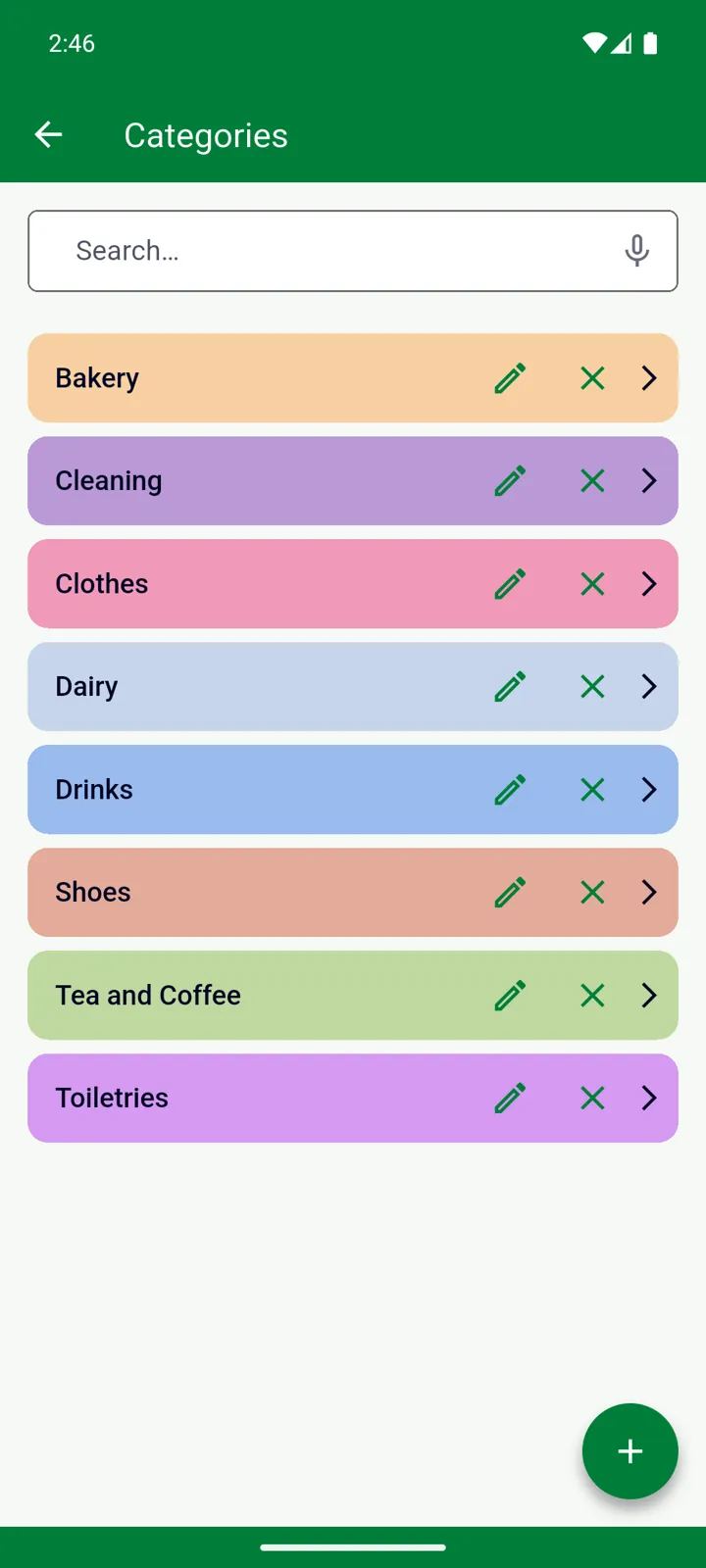
Creating a category
Section titled “Creating a category”-
Open Manage → Categories and tap +.
-
Type the Name and pick a colour — it tints the category’s header in your lists.
-
Tap ✓.
For a subcategory, tap the parent category first to open it, then tap +. Two levels are free; up to five with Premium. You can also create categories while adding an item: in the Categories picker, tap + for a new top-level category, or select a category and tap the new-folder icon for a subcategory.
Tap the pencil to rename or recolour a category. A category can’t be moved under a different parent — create it in the right place and re-file its items.
Options on a category
Section titled “Options on a category”Open the category with the pencil to find these:
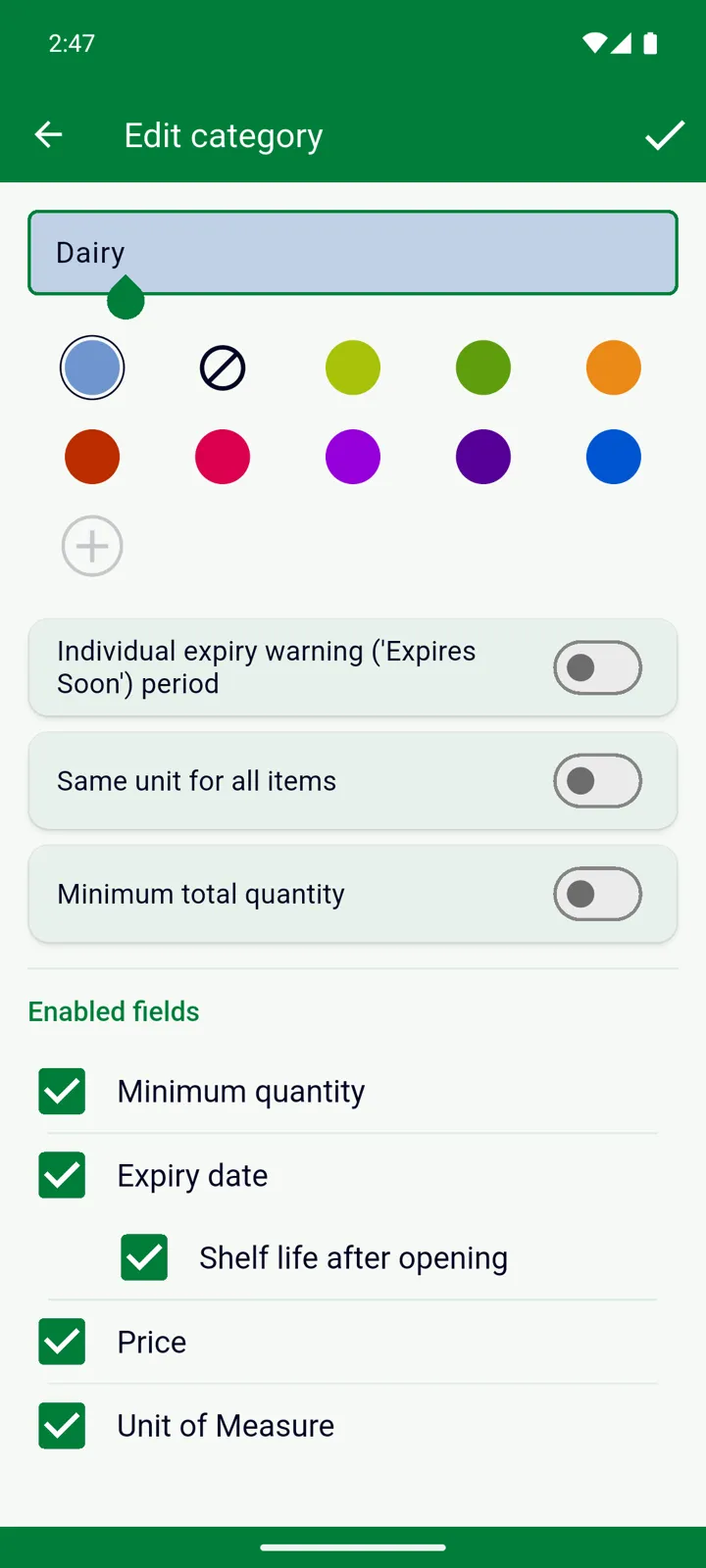
Enabled fields — untick a field and items in this category stop showing it: Minimum quantity, Expiry date, Shelf life after opening, Price, Unit of Measure. Handy for Clothes or Tools, which never expire. A field that’s switched off for the whole list under Features and Fields stays off whatever you choose here. New subcategories start with their parent’s choices.
Minimum total quantity — a minimum for the category as a whole, counting every item in it and its subcategories: “at least 10 tins of anything in Canned food”. It needs a unit to add things up in, so it switches Same unit for all items on. See Minimum quantity and low stock.
Same unit for all items — every item in the category is measured in the same unit, and subcategories inherit it. If items are already measured in other units when you set this, InvenDo asks Convert to the category’s unit and lets you enter each item’s quantity in the new unit. See Units and unit size.
Deleting a category
Section titled “Deleting a category”Tap ✕ on the category. Its subcategories go with it; the items are kept and moved to the parent category — or become Uncategorized if there’s no parent. Nothing in your Inventory is deleted.
Categories in your lists
Section titled “Categories in your lists”- Category headers show the category’s colour and small counters: green for items that are fine, orange for items expiring within the next week, red for expired — counting subcategories too. A red min badge means the category is under its minimum.
- Tap a header to expand or collapse it; subcategories nest inside. Uncategorized always comes first.
- ⋮ → View Options → Categories switches the header count between Show # of Items and Show Total Quantity, and Sort By orders the items inside each category by expiry date, name or quantity. See Viewing and finding items.
- The category toolbar button turns the grouping off for a flat list, and back on.
Good to know
Section titled “Good to know”- Categories are per list — a second list starts with none. See Multiple lists.
- Deep subcategories (three to five levels) are a Premium feature, also available to you inside a list someone with Premium shared with you. See Free vs Premium.
- In the web version everything on this page works the same way.
Still need help? Contact us