
Multiple lists
Manage → Lists. Lists live in the General section of Manage, alongside Users.
Every InvenDo list is a complete, separate inventory: its own Inventory and Shopping List, catalog, categories, storage places, stores, units and feature switches. Your account starts with one, called Main list, and Premium lets you add more — one for the holiday home, one for the office, one for the camping gear.
What’s shared across all your lists: the people you’ve given access to, and your app preferences (theme, currency, reminders and so on).
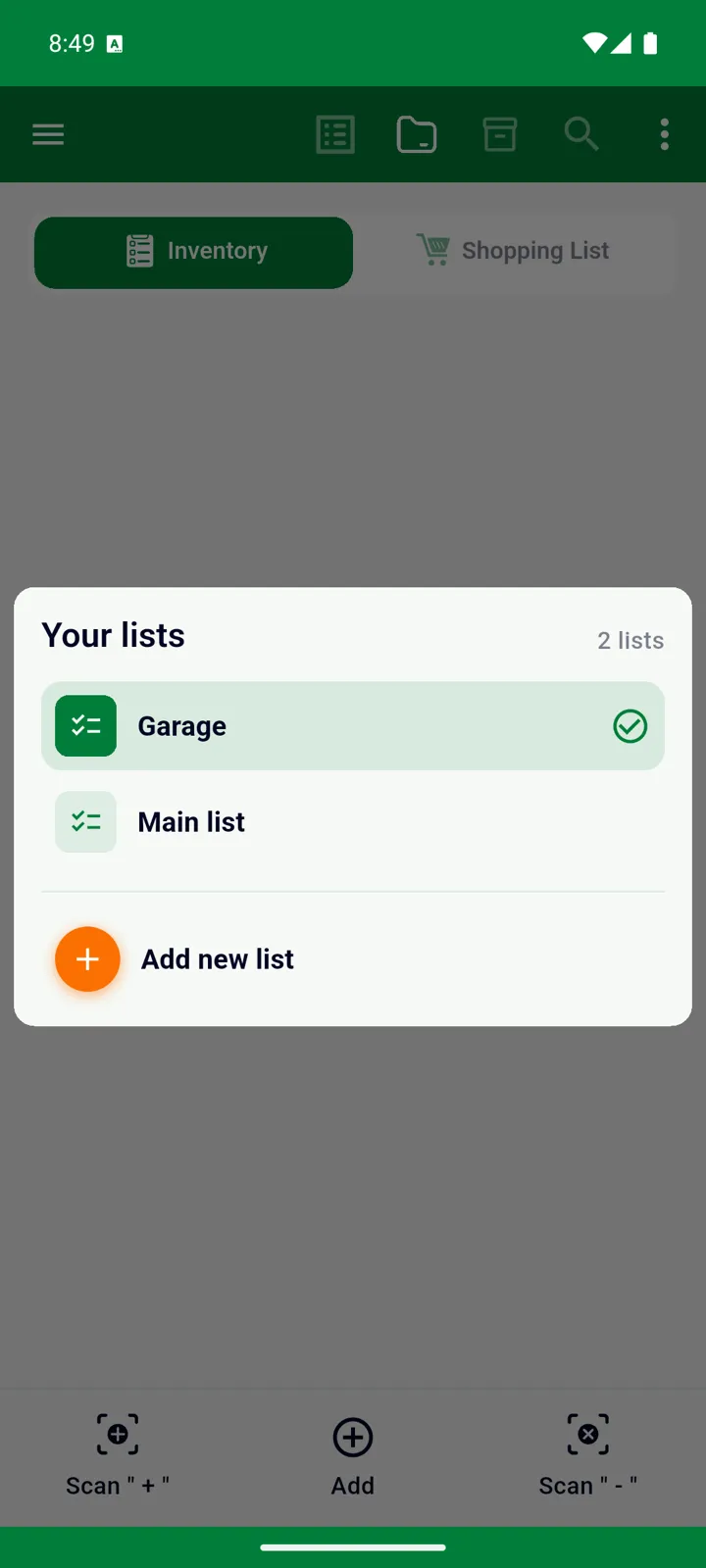
Switching lists
Section titled “Switching lists”Open the menu ☰. The card at the top shows the Current list; tap it to see Your lists — the lists you own and the ones shared with you, which appear as List name (owner) — and pick one. Each device remembers which list it was last on.
Creating a list
Section titled “Creating a list”Creating additional lists is a Premium feature.
-
Open the menu ☰ and tap + next to the current list’s name (or Manage → Lists → +, or Add new list in Your lists).
-
Type a Name. If you already share with people, you can tick who should see this list under Users who can access this list — or do that later.
-
Tap OK. InvenDo shows the new list’s features — Customize this list for your needs — untick what this list won’t use, then tap Go to ….
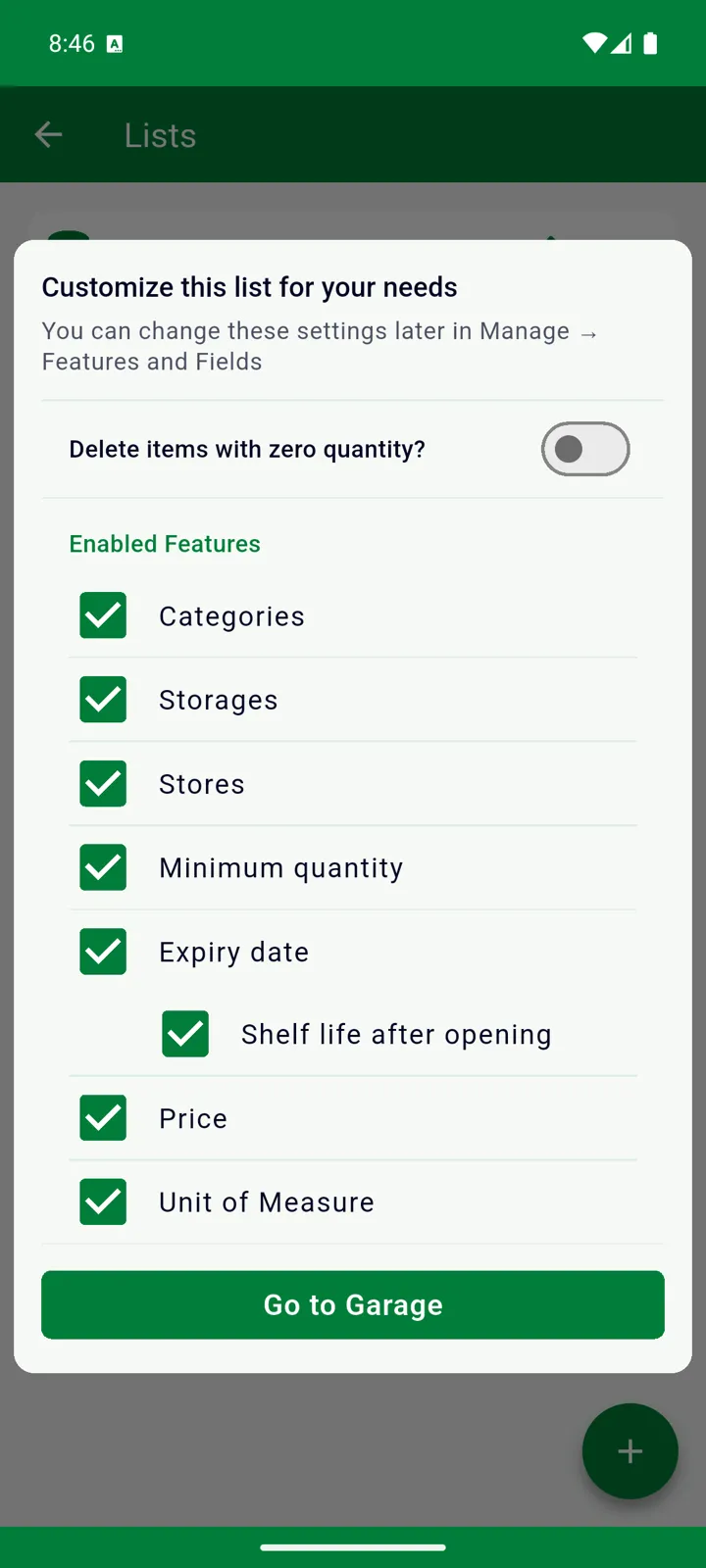
The new list is empty: no categories, storage places or products of its own yet. Set up your first list applies just as well to the second.
Renaming, sharing and deleting
Section titled “Renaming, sharing and deleting”Manage → Lists shows the lists you own. The pencil renames a list and manages who can see it (see Share with family); ✕ deletes it.
Lists on a free account
Section titled “Lists on a free account”Your main list is always fully yours. If you have extra lists — from a Premium period that ended, say — they switch to read-only: you can look and search, but a banner says This list is in read-only mode. Additional lists editing is only available for Premium users, with an Upgrade to Premium button. Nothing is deleted; editing resumes the moment Premium is back.
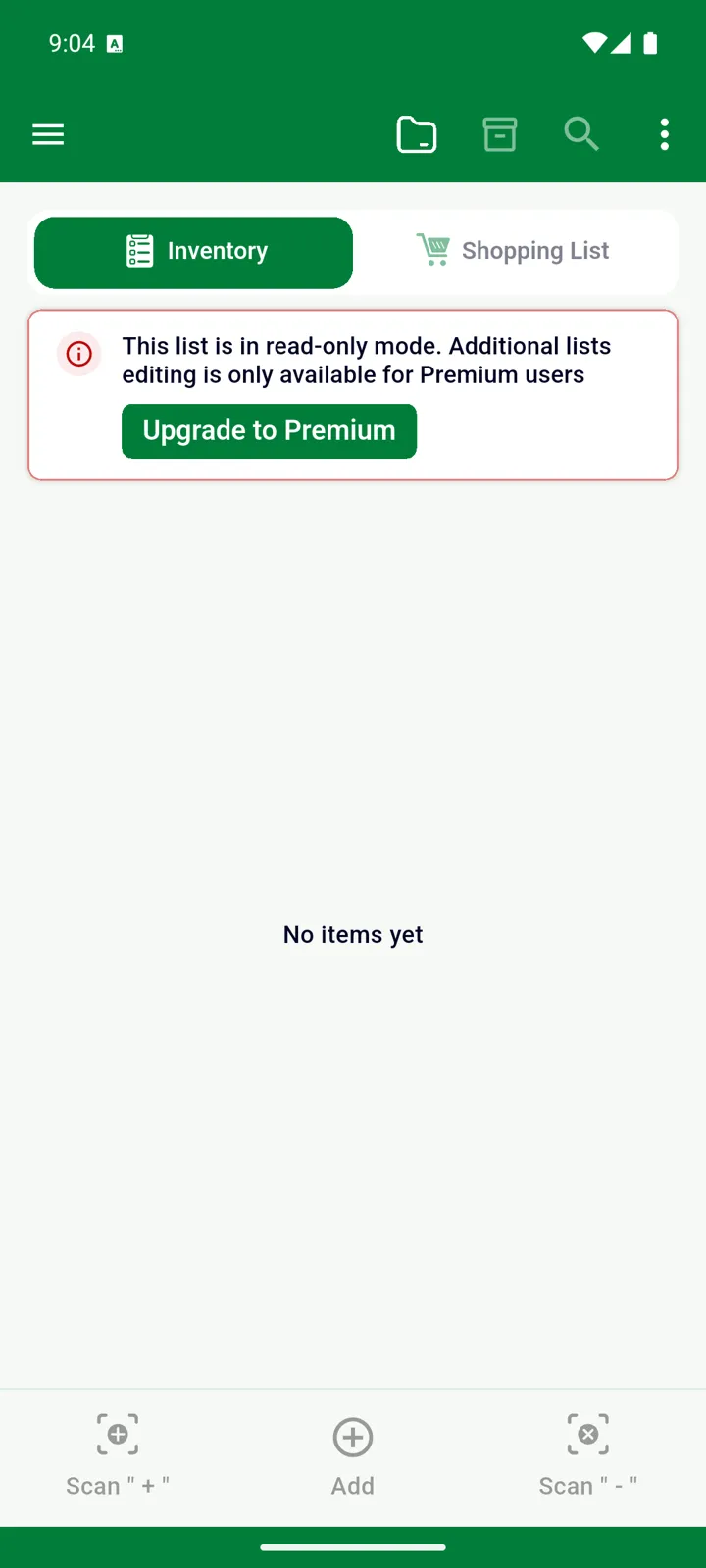
Lists that other people share with you are never read-only — their owner’s Premium covers them. See Free vs Premium.
Good to know
Section titled “Good to know”- Reminders cover all your lists; with more than one, the message starts with the list’s name, and tapping it switches to that list. See Expiry dates and notifications.
- The Android widget can switch between lists too.
- Features and Fields and Excel exports are per list — and per tab.
Still need help? Contact us