
Scanner settings
Settings → Scanner — Android only. On iPhone, InvenDo uses one built-in scanner that reads every common barcode type, and there’s nothing to configure.
Android phones vary a lot in cameras and speed, so InvenDo lets you pick between several scanning engines. The default works for most phones; change it if scanning is slow, refuses to focus, or InvenDo tells you The selected scanner is not available on your device. Please select another scanner in settings.
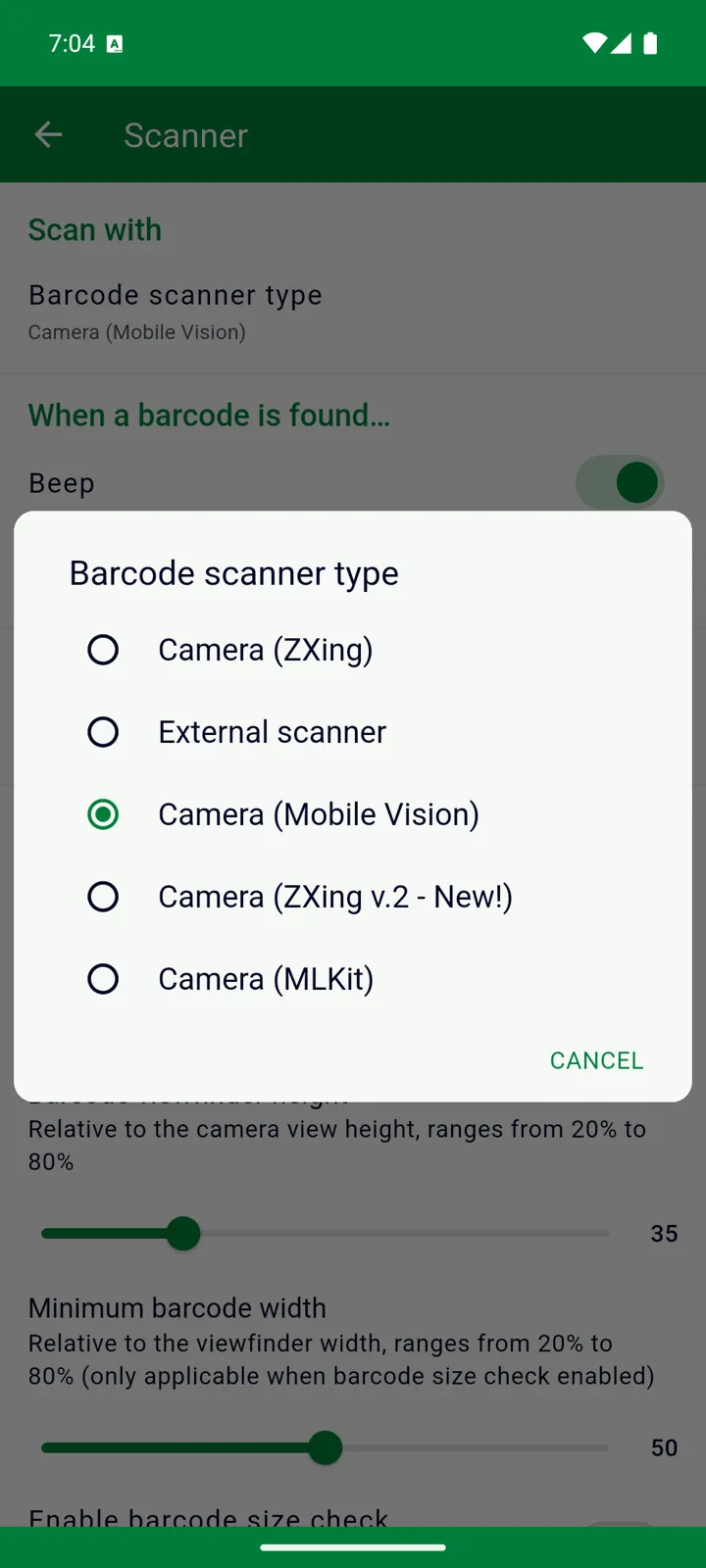
Choosing a scanner
Section titled “Choosing a scanner”Tap Barcode scanner type and pick one:
| Scanner | When to use it |
|---|---|
| Camera (Mobile Vision) | The default. Fast on most phones. |
| Camera (MLKit) | Google’s newer engine; try it first if the default struggles, and when you need QR codes or less common formats. |
| Camera (ZXing) | The classic; works on older or unusual devices, with the most knobs to turn. |
| Camera (ZXing v.2 - New!) | A newer take on ZXing; try it if the classic misbehaves. |
| External scanner | A Bluetooth or USB barcode scanner instead of the camera — see below. |
Whichever you pick applies everywhere you scan: the bottom-bar buttons, the search fields and the item forms. If a scan fails because the scanner isn’t available, InvenDo offers to open these settings and retries the scan after you choose another.
Options
Section titled “Options”Under When a barcode is found… every scanner can Beep (on) and Vibrate (off).
Each camera scanner has its own extras below that:
- Mobile Vision — Use front light turns the torch on while scanning; the viewfinder size and a barcode size check that asks you to move closer when a code is too small to read reliably.
- ZXing — which code types to look for (1D Product covers the EAN and UPC codes on groceries, 1D Industrial, QR Codes, Data Matrix, Aztec, PDF417), the torch, Use auto focus, Invert scan for white-on-black codes, and a set of Device Bug Workarounds for cameras that misbehave.
- MLKit — a switch per code type; all are on to begin with.
Leave the code-type switches alone for everyday shopping — the retail formats are on in every scanner.
Using an external scanner
Section titled “Using an external scanner”A handheld scanner that connects over Bluetooth or USB and “types” what it reads can replace the camera.
- Pair or plug in the scanner as you would a keyboard.
- In Settings → Scanner, set Barcode scanner type to External scanner and Suffix (end symbol) to whatever your scanner sends after each code — Enter is usual; Tab and Space are the alternatives.
- Scan as normal in InvenDo. Instead of the camera, a screen with a text box opens; point the scanner at the code and the box fills in. Tap OK if it doesn’t submit by itself.
If nothing arrives in the box, switch between Mode 1 and Mode 2 on that screen — they’re two ways of listening for the scanner’s input. The feature is marked experimental in the app; if it works for you, or doesn’t, we’d like to hear via Questions or suggestions.
Good to know
Section titled “Good to know”- The first scan asks for camera permission. If you declined, InvenDo will send you to the phone’s app settings to allow it.
- On the scan screen, the flash icon toggles the torch and the gear opens these settings; the ZXing scanner also has a button to switch cameras.
- A 12-digit UPC and its 13-digit EAN form (a leading zero) are treated as the same code when scanned.
- There’s no scanning in the web version. See InvenDo on the web.
Still need help? Contact us