
Unidad de medida
Gestionar → Unidad de medida. Las unidades pertenecen a la lista en la que estás.
Hay cosas que cuentas — 6 huevos, 3 rollos —, cosas que pesas o mides — 2 kg de harina, 1,5 L de leche — y cosas que vienen en envases con una cantidad conocida dentro. InvenDo maneja las tres: una unidad en cada artículo, tus propias unidades cuando las incluidas no encajan y un tamaño de unidad que dice cuánto contiene un envase.
Tus unidades
Sección titulada «Tus unidades»Una lista nueva viene con uds., paq., kg, g, L y ml — en tu idioma. Añade las tuyas con + (solo necesitan un nombre): botella, rollo, bolsa, tarro. El lápiz renombra una unidad en todos los sitios donde se usa.
Borrar una unidad la quita de todos los artículos que la usaban — y se lleva consigo cualquier tamaño de unidad —, así que esos artículos se quedan sin unidad, pero no se rompen.
Elegir la unidad de un artículo
Sección titulada «Elegir la unidad de un artículo»En el formulario del artículo, toca Unidad de medida. La lista ofrece Ninguna, tus unidades y Añadir unidad — crea una ahí y luego tócala para elegirla. Los artículos no necesitan unidad obligatoriamente; Ninguna va bien para todo lo que simplemente cuentas.
Si la categoría del artículo fija una unidad para todos sus productos, el campo aparece bloqueado y te lo indica.
Tamaño de unidad: los envases y lo que llevan dentro
Sección titulada «Tamaño de unidad: los envases y lo que llevan dentro»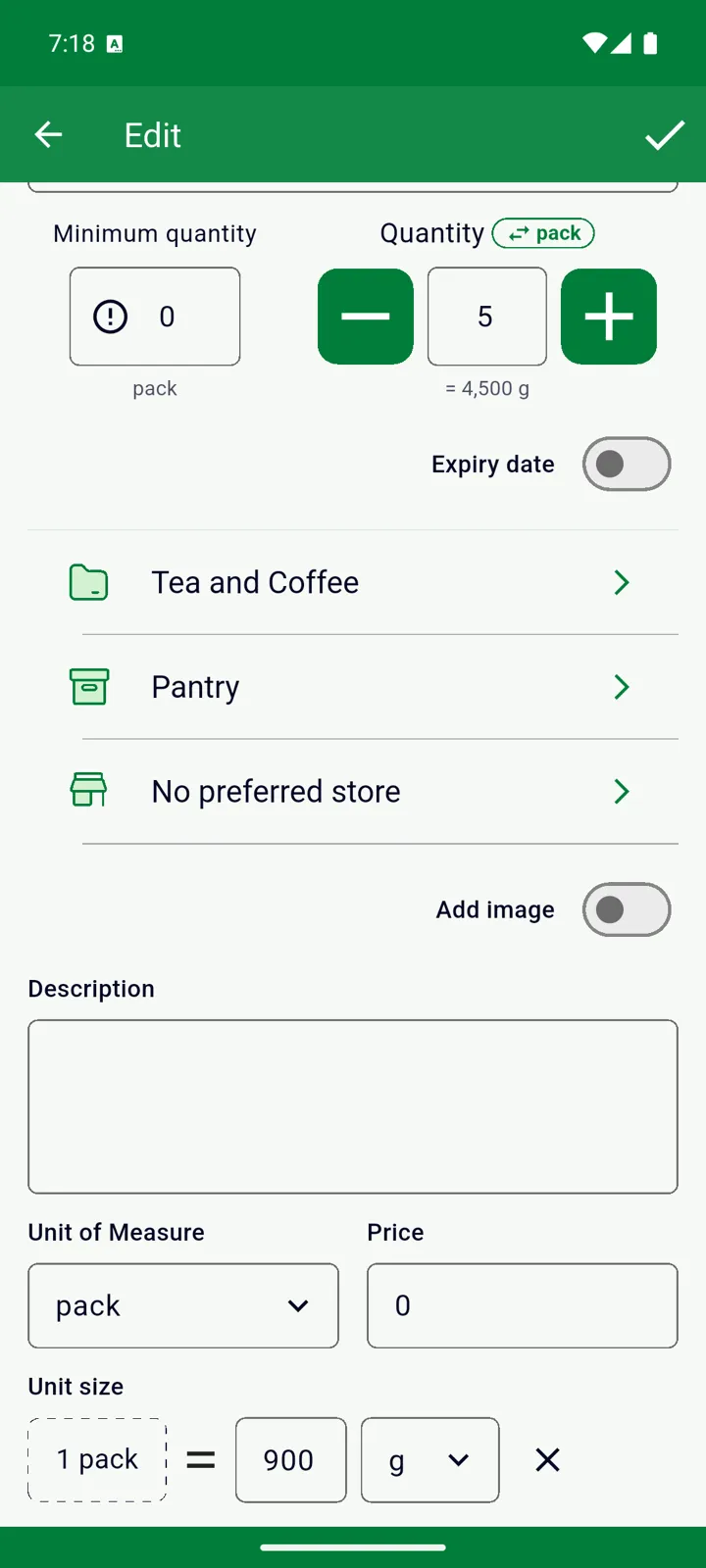
Establece un tamaño de unidad cuando compras algo por envases pero piensas en el contenido — un envase de harina de 900 g, media docena de huevos, una botella de 500 ml.
-
Dale al artículo una unidad para el envase — paq., botella, caja.
-
Toca + Tamaño de la unidad justo debajo y rellena 1 paq. = 900 g: la cantidad y la unidad del contenido.
-
Toca ✓.
A partir de entonces:
- La Cantidad cuenta envases. Dos envases de harina son cantidad 2, y la fila muestra 2 encima de paq. (= 1,8 kg).
- Toca el botón de la unidad junto a la cantidad para pasar el campo a contenido — escribe 450 g e InvenDo muestra = 0,5 paq. —; el valor guardado es el mismo en ambos casos. En modo envase la cantidad va en números enteros; en modo contenido los decimales no dan problema.
- La Cantidad Mínima usa el mismo modo en que esté la cantidad, así que las dos nunca se contradicen.
- La Lista de Compras siempre cuenta envases — los compras enteros.
- Abrir uno abre un envase; consulta Artículos abiertos.
El tamaño de unidad pertenece al producto (lo comparten todas sus entradas y la Lista de Compras) y depende de la unidad del artículo: si cambias la unidad, InvenDo borra el tamaño de unidad y te avisa.
Conviene saber
Sección titulada «Conviene saber»- Hay dos interruptores con el nombre Unidad de medida: el de Funciones y campos desactiva las unidades en toda la lista; el de ⋮ → Opciones de vista → Mostrar campos solo decide si las unidades se muestran en las filas de la lista — y viene desactivado hasta que lo actives. Consulta Ver y encontrar artículos.
- Muestra la cantidad total en los encabezados de categoría suma números a secas, sean cuales sean las unidades, y descarta los decimales: 2 kg y 3 uds. hacen 5. Úsalo en categorías con una sola unidad.
- Una lista creada con Unidad de medida desactivada no recibe las unidades incluidas, ni siquiera si activas las unidades más tarde — añade a mano las que necesites.
- Los archivos de Excel llevan el nombre de la unidad, pero no el tamaño de unidad. Consulta Exportar e importar Excel.
- Las unidades y el tamaño de unidad son gratis en todas las plataformas.
¿Aún necesitas ayuda? Contáctanos