
Catalog
Manage → Catalog. The catalog belongs to the current list; each list has its own.
Every product you’ve ever added to a list has one record in its catalog: the name, its barcodes, category, preferred store, unit, price, minimum quantity, whether it has an expiry date, how long it keeps after opening, a photo and a description. Think of it as the product’s business card. The milk in your fridge — with today’s quantity and expiry date — is a separate entry that refers to that card.
You rarely need to open the catalog on purpose: InvenDo builds it for you as you add items. It comes in handy when you want to tidy up a product’s details in one place, manage its barcodes, or find something you’ve completely run out of.
What the catalog does for you
Section titled “What the catalog does for you”- Suggestions while you type. Start typing in Item name and matching products appear. Pick one and the form fills in the category, unit, price, store and everything else it knows.
- Barcode recognition. Scan a barcode that’s already in the catalog and the item form opens pre-filled. A product can carry several barcodes — see Scanning barcodes.
- Remembered details. Category, unit, unit size, price, preferred store, minimum quantity, description and photo are stored once per product and reused every time you add it again — as is the storage place you last put it in.
- Shelf life after opening. Tell InvenDo once how many days a product keeps after opening, and it sets the consume-by date for you every time you open one. See Opened items.
Browsing the catalog
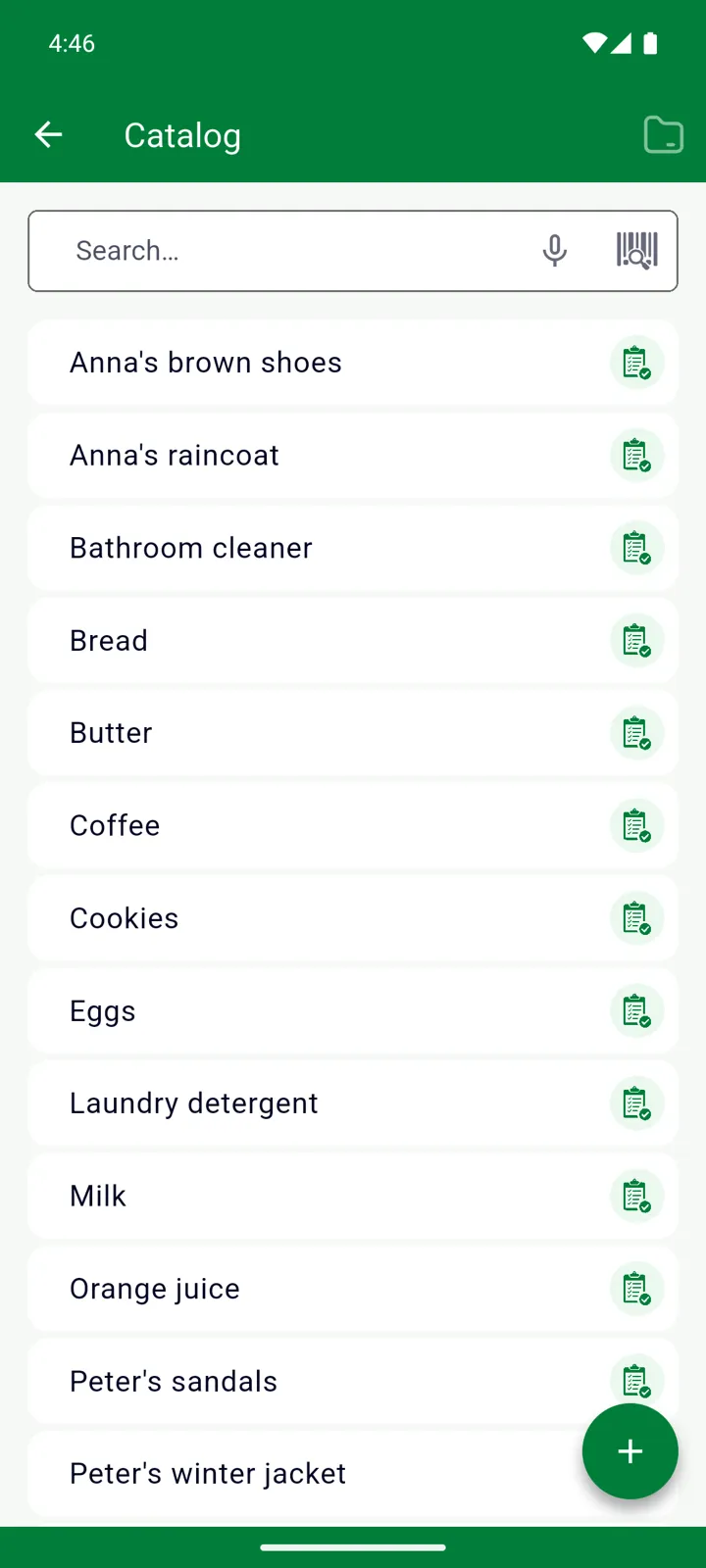
Section titled “Browsing the catalog”- Products are listed alphabetically. Tap the category icon in the top bar to group them by category instead.
- Use the search field to find a product by name or barcode. On a phone, tap the microphone to search by voice or the barcode icon to scan the pack.
- Tap a product to edit it; tap + to create one that isn’t in your lists yet.
- The cart icon on a row adds that product to the Shopping List — useful for something you’ve run out of completely.
Editing a product
Section titled “Editing a product”-
Open Manage → Catalog and tap the product.
-
Change what you need. The fields you see depend on the list’s Features and Fields and on the product’s category — if the “Tools” category has expiry dates switched off, a screwdriver won’t offer an Expiry date switch.
-
Tap ✓ to save.
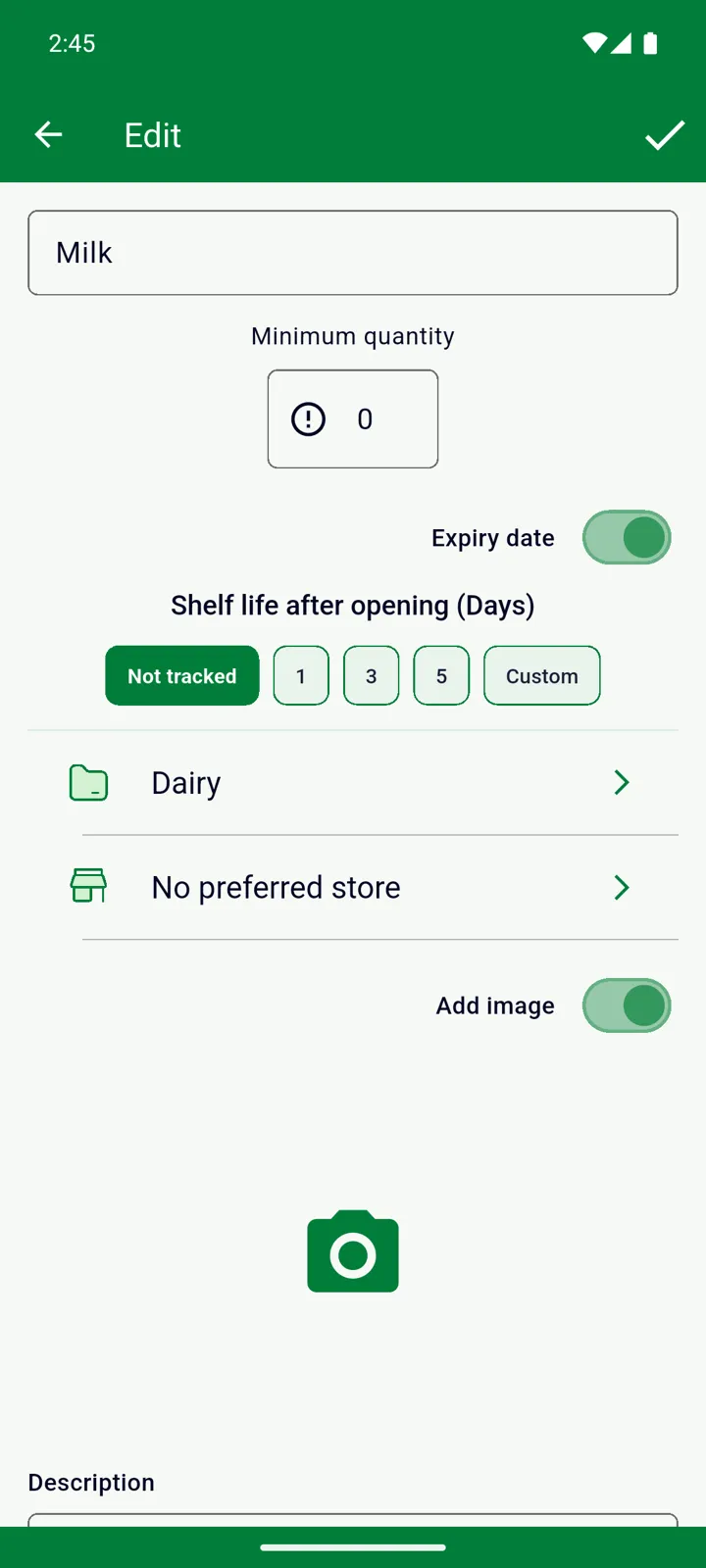
Most changes — category, unit, unit size, minimum quantity, description, photo — show up straight away on the items already in your Inventory and Shopping List. Barcodes, the expiry-date switch and the shelf life are used from the next time you add or open the product.
Deleting a product
Section titled “Deleting a product”Swipe the product left or right and confirm.
Good to know
Section titled “Good to know”- Adding a product photo is a Premium feature.
- In the web version there is no camera, so barcodes are typed in rather than scanned.
- On a read-only list (an extra list on the free plan) the catalog can be browsed and searched but not changed.
Still need help? Contact us