
Product lookup
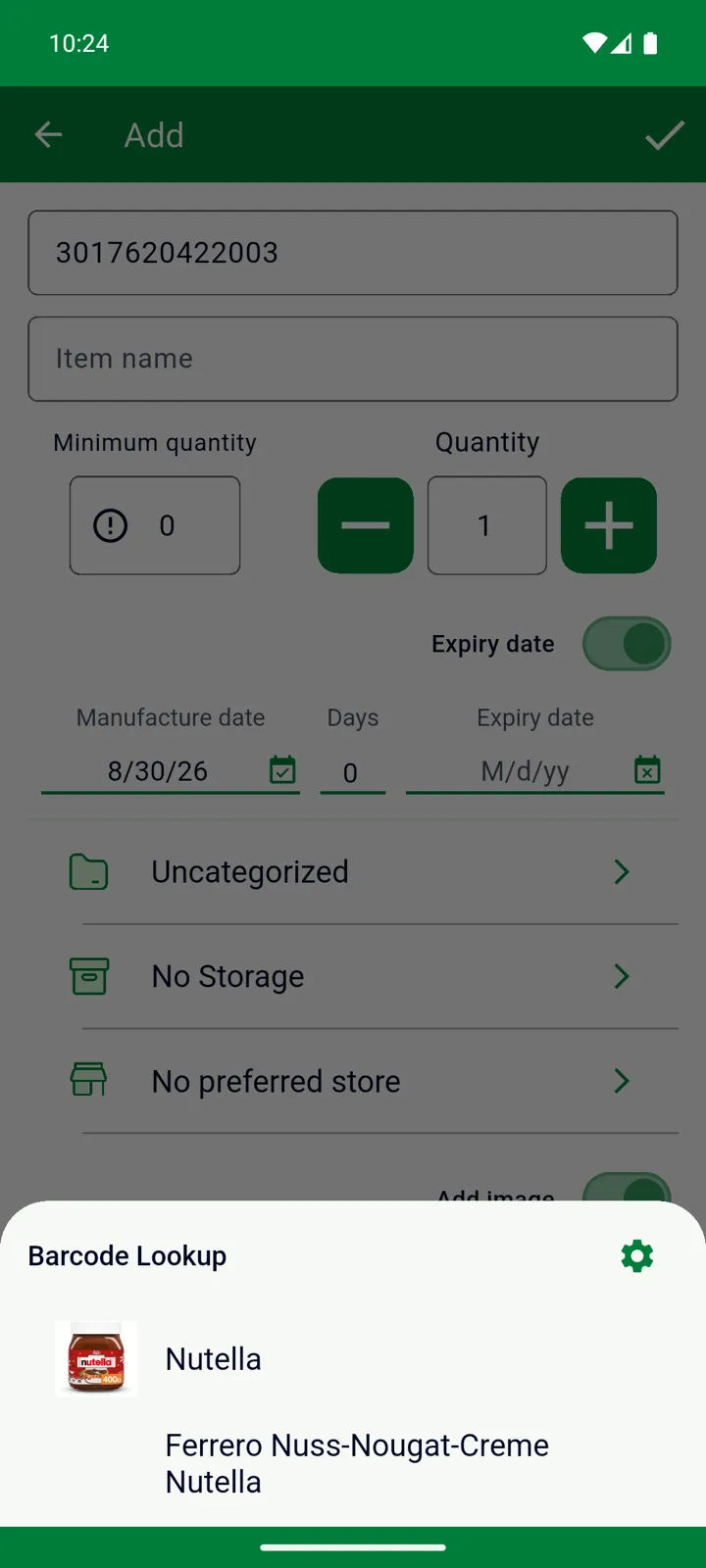
Scan a barcode InvenDo hasn’t seen before and it asks two public product databases — Open Food Facts and Edamam — what the pack is. If either knows it, a Barcode Lookup sheet lists the matches; tap one and the name is filled in for you, so all that’s left is the quantity and the date.
When it happens
Section titled “When it happens”Lookup runs when you use Scan ” + ” — on either tab — for a barcode that isn’t in your catalog yet. Products you’ve scanned before are filled in from your own catalog, no lookup needed. See Scanning barcodes and Catalog.
It doesn’t run when you scan from inside an item’s form (that just attaches the barcode), when you scan to search, or in the web version.
What you get
Section titled “What you get”- The name, in your app’s language when the database has it, otherwise in English or another language it has.
- The photo — if you have Premium. On the free plan the name is filled in and the photo is skipped.
Nothing else is filled in, so check the quantity, unit and category as usual. If neither database knows the barcode, nothing appears: type the name, and InvenDo remembers it with that barcode from then on.
Where it works
Section titled “Where it works”Lookup is available when your phone’s language and region are one of these:
| Language | Regions |
|---|---|
| English | United States, United Kingdom, Canada |
| Spanish | Spain, Mexico, United States |
| French | France, Belgium, Canada |
| German | Germany, Switzerland |
| Italian | Italy |
| Dutch | Netherlands, Belgium |
Elsewhere, scanning still works — you type the name yourself. Coverage is best for food and drink; household goods and cosmetics are patchier. Anyone can add products to Open Food Facts, which is how it grows.
Switching it off
Section titled “Switching it off”Open Settings → Barcode Lookup and turn on Disable barcode lookup. The setting follows your account to your other devices. See Settings overview.
Privacy
Section titled “Privacy”Only the barcode is sent to the two services — nothing about you or your lists. Lookup needs an internet connection; offline, the form simply opens empty.
Still need help? Contact us